CRM Admin is the admin-only screen at CRM → CRM Admin where you set shop-wide rules. It is split into seven sections — Jobs & field, Quotes, Invoices & tax, Branding, Texting, Memberships and Trash — listed down the side (along the top on a phone); click one to open it. Only the section you chose is on screen, and each section has its own link, so you can bookmark it and Back works. Every card saves on its own with its own button; nothing saves from the top of the page. Only admins see CRM Admin, and only admins can save these settings.
The sections
A path such as CRM → CRM Admin → Jobs & field → Job closeout means: open CRM Admin, click the Jobs & field section, then find the Job closeout card in it.
| Section | What's in it (cards, top to bottom) | Read more |
|---|---|---|
| Jobs & field | Required fields, Default visit length, Field authorization, What techs see, Job closeout, Routine measurements | Create jobs and schedule visits, Close out a job, Record readings |
| Quotes | Quote approval, Quote discounts, Supplier price lookup | How customers approve quotes and pay deposits, Build and send quotes |
| Invoices & tax | Sales tax, Invoicing (overdue reminders), Labor rates | Create, issue and send invoices |
| Branding | Customer branding: your logo and colors | Share a branded customer portal |
| Texting | Texting: your Twilio account and number, and the review link | Text customers from your own number |
| Memberships | Service agreements: the membership plans you sell (Pro plan) | Recurring maintenance visits and memberships |
| Trash | Deleted customers, jobs, quotes, equipment and leads, restorable for 30 days | Restore deleted customers, jobs and quotes |
What each card saves with
| Card | Section | What it controls | Save with |
|---|---|---|---|
| Required fields | Jobs & field | Extra fields your team must fill in when creating leads, customers, service locations, equipment and jobs. | Save required fields |
| Default visit length | Jobs & field | How long a visit is when a job is booked with a time and a tech. | Save visit length |
| Field authorization | Jobs & field | The job price at which a tech must get a customer signature before starting. | Save field authorization |
| What techs see | Jobs & field | Whether techs see what a job sold for and whether it's paid. | Save what techs see |
| Job closeout | Jobs & field | Requiring an After photo, what the customer gets when a job is finished, and field upload settings. | Save closeout |
| Routine measurements | Jobs & field | Which readings techs see for each equipment type. | Save routine measurements |
| Quote approval | Quotes | Terms, the 3-day cancellation notice, an email code before approving, and how long approval links last. | Save approval settings |
| Quote discounts | Quotes | The largest discount Sales and Field can give. | Save discount limit |
| Supplier price lookup | Quotes | How Prycey turns a web part price into your cost. | Save |
| Sales tax | Invoices & tax | Whether invoices carry tax, how you contract, your default rate, whether labor is taxed. | Save tax settings |
| Invoicing | Invoices & tax | Overdue invoice reminder emails. | Saves when you tick it |
| Labor rates | Invoices & tax | Hourly rate bands for work billed by the hour. | In the card |
| Customer branding | Branding | Your logo and colors on the customer portal, quotes and invoices. | Save customer branding |
| Texting | Texting | Your Twilio connection and number, and review-request texts. | In the card |
| Service agreements (Pro plan) | Memberships | The membership plans you sell. | In the card |
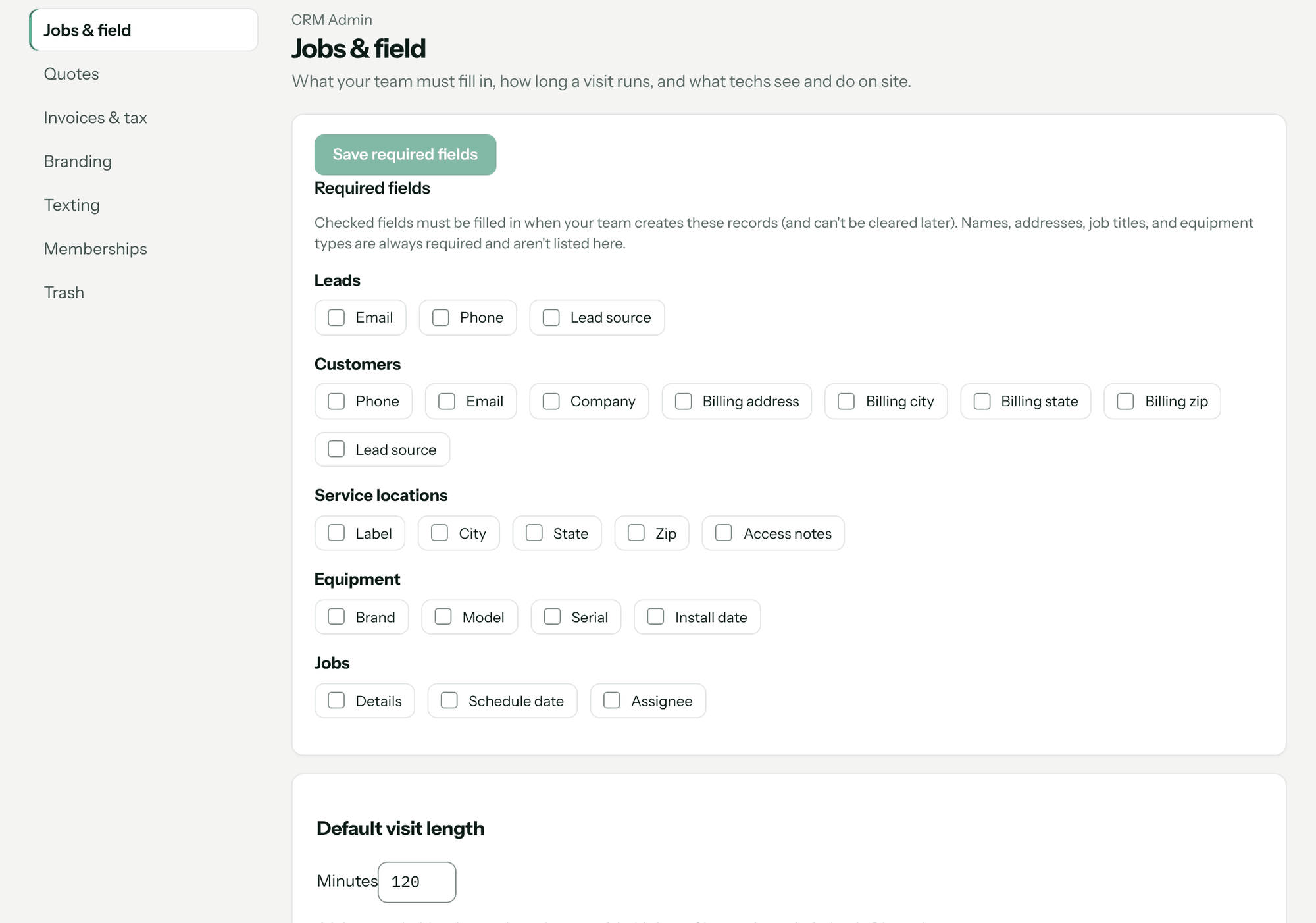
Required fields
Tick a field and your team must fill it in when they create that kind of record, and can't clear it later. Names, addresses, job titles and equipment types are always required and aren't listed.
| Record | Fields you can require |
|---|---|
| Leads | Email, Phone, Lead source |
| Customers | Phone, Email, Company, Billing address, Billing city, Billing state, Billing zip, Lead source |
| Service locations | Label, City, State, Zip, Access notes |
| Equipment | Brand, Model, Serial, Install date |
| Jobs | Details, Schedule date, Assignee |
Required equipment fields apply to techs adding a unit in the field too, so require only what a tech can always read off the unit.
Routine measurements
Under Jobs & field, pick an Equipment type, tick the few readings techs should see for it, and save. Techs can still add other readings for one visit, and removing one here keeps its saved history. See Record readings and diagnostic checks.
Quote approval
In the Quotes section. Everything here is off until you turn it on.
- Terms & conditions — shown on the approval page and saved word-for-word onto each approval. Editing later never changes what someone already agreed to.
- Show a 3-day right-to-cancel notice — needs your business address under Settings → Company first. Whether the rule applies to a given job is your call; if you change the standard wording, have your own attorney read it.
- Email a code before approving — a six-digit code the customer must enter. Only on quotes of at least sets a dollar floor; blank means every quote. Send the code to the address the quote went to uses the address on file instead of the one typed.
- Approval links expire after — 1 to 365 days from sending, 30 by default. A quote with its own valid-until date uses that.
See How customers approve quotes and pay deposits.
Sales tax and Invoicing
Both are in the Invoices & tax section. Pricebookr applies what you set here and doesn't guess at your state's rules — ask your accountant. Tick Collect sales tax on invoices, then choose Lump sum (no tax line) or Separated (a tax line, with a Default rate and My state taxes labor on the work I do). A service location can override the rate. Under Invoicing, Remind customers about overdue invoices emails on the due date and at 7, 14 and 30 days past due, once each. See Create, issue and send invoices.
Field authorization and What techs see
Both are in the Jobs & field section. Ask for authorization before work starts with an amount in A signature is required at … and up. Under that amount, the tech records a verbal go-ahead. Show techs what a job sold for lets techs see the job's value and whether it's been paid on their own jobs. What an item costs you is a separate per-person switch under Members.
Job closeout
In the Jobs & field section.
- Require an After photo to finish a job — a tech can't finish without one. Office staff aren't held to it.
- What the customer gets when a job is finished: Nothing, Job-complete message, or Service report. With the report you can also tick Ask the customer to confirm the work was done.
- Field uploads: Upload videos on Wi‑Fi only, and Scan data plate photos automatically (uses scan credits; results wait under CRM → Data plates).
See Close out a job and send the service report and Scan data plates.
Quote discounts, visit length, supplier prices
- Maximum discount for sales and field (%) (Quotes → Quote discounts) — 0% reserves discounts for admins. Admins can always approve more.
- Default visit length (Jobs & field) — 15 to 720 minutes, 120 by default. Change a real visit's window in Dispatch.
- Web prices run this far over our cost (%) (Quotes → Supplier price lookup) — 0 to 60. When Prycey prices a part from a web listing, the cost is the listed price less this, then your markup schedule sets the customer price. See Markup schedules.
Branding, Texting, Labor rates, Memberships
- Customer branding (Branding section): Company logo (PNG, JPG or WebP, up to 5 MB), Primary color and Button color, with a live preview. Use default colors resets them. See Share a branded customer portal.
- Texting (Texting section): Connect Twilio with your own Twilio account and choose which of your numbers to send from; Ask for a review holds your review link. See Text customers from your own number.
- Labor rates (Invoices & tax section): bands for work billed by the hour — diagnostics, after-hours, warranty labor — with days, hours, trip charge, rate, minimum and rounding. Flat-rate jobs never use them.
- Service agreements (Memberships section, Pro plan): the plans you sell, with price, billing, visits per year, discount, pricebook and trip charge. Changing a plan never changes anyone already on it. See Recurring maintenance visits and memberships.
Troubleshooting
| You see | Why | Fix |
|---|---|---|
| Add your business address under Settings → Company first. The notice has to tell the customer where to send it, and one with nowhere to send it is defective. | The cancellation notice needs your address. | Fill in your address under Settings → Company, then come back. |
| Set a default tax rate before switching tax on — a separated contract prints a tax line, and without a rate it would print zero. | Separated with no rate. | Enter a Default rate and save again. |
| Set the amount that needs a signature before turning this on — at $0 every job would need one. | Field authorization on with no amount. | Enter the dollar amount, then save. |
| Paste the link customers should leave a review at before turning this on. | Review texts need a link. | Paste your Google review link under CRM Admin → Texting. |
| No CRM Admin in the menu | Only admins see it. | Ask an admin to make the change, or to change your role. |
| forbidden | Only admins can save CRM settings. | Ask an admin. |
Questions: [email protected].