An admin connects your own Twilio account under CRM → CRM Admin → Texting, picks the number to send from, and registers that number for A2P 10DLC in Twilio. Texts then go out from your number, and replies land in CRM → Inbox. You pay Twilio directly — about a cent a message — and the number stays yours. Pricebookr doesn't supply a number.
Before you start
- An admin login. Only an admin sees CRM Admin and its Texting section.
- A Twilio account with a phone number that can send texts. If you don't have a number yet, buy one in the Twilio console first — a local number is about $1.15 a month.
- A2P 10DLC registration in Twilio. US carriers only carry business texts from a registered sender. In your Twilio console, register your brand and a campaign — it costs a few dollars and takes a few days. Until it's done, most of what you send is quietly filtered: Twilio says it was delivered and the customer never sees it. This is the single commonest reason texting "doesn't work". Start it now, in parallel with the steps below.
1. Make a Twilio API key
Your Account SID is on the Twilio console home page, in the Account Info panel. For the other two values, go to Settings → Account settings → API keys & auth tokens in Twilio and press Create API key. Choose the United States (US1) region and the Standard key type.
Twilio shows the secret once. Copy it before you leave that page; if you lose it you make a new key. A Standard key rather than your Auth Token means you can revoke it on its own without affecting anything else on your Twilio account.
2. Connect
Go to CRM → CRM Admin → Texting and click Connect Twilio. Paste the Account SID, API Key SID and API Key Secret, then click Check and save. The secret is checked against Twilio before it's stored, and stored encrypted.
You'll know it worked when the message says "Connected. Now choose the number to send from." and Your Twilio numbers appear.
3. Choose your number
Click Use this next to the number to send from. Pricebookr points that number's incoming texts at your Inbox for you. If the number already sends its incoming texts somewhere else (an answering service, another app), you're asked before that is changed — whatever reads them today would stop receiving them.
You'll know it worked when the card shows ready and "Sending from" your number.
4. Send yourself a test
Type your own mobile number next to Send yourself a test: and click Send test. If it doesn't arrive within a minute, it's almost always 10DLC registration. A test only counts as consent for that test — a real customer still has to agree before a real text goes out.
Consent: who you can text
Connecting doesn't make anybody textable. Pricebookr won't send an automated or office-started text to a number with no record that they agreed. Consent gets recorded three ways:
- On your web forms. Once a number is chosen, your lead forms show an unticked box asking permission to text. See Capture leads with web forms.
- At the door or on the phone. When a text is refused for no consent, the job's Text panel and the Inbox show They said yes — record it. A tech can record it for customers on their own jobs.
- They text you first. You can always answer someone who texted you, from the Inbox.
STOP is final. If anyone replies STOP, nobody in the office can undo it — only they can, by texting START to your number. If a customer asks you not to text them, click They asked us to stop on the job's Text panel to record it. On my way texts, review requests and your first text in a conversation end with "Reply STOP to opt out."
What gets texted
| Text | Where it's sent from | Turn it on or off |
|---|---|---|
| On my way | On my way on a visit card on Dispatch, or the On my way in 15m / 30m / 60m / now buttons in a job's Text panel. Reads like "Your technician from (your shop) is about 30 minutes out." | CRM → Automations. Off, the Dispatch button reads En route and sends nothing. |
| Review request | Sent on its own, once per job, after the job is Complete and paid in full, at least 3 hours later and only 9am–7pm. Never to someone who still owes money or hasn't agreed to texts; the same customer isn't asked again for four months. | Tick Text a review link after a job is finished and paid for under Ask for a review on the Texting card, paste your Google review link, and Save. |
| Recurring visit reminder and reschedule notice | The day before a recurring maintenance visit, and when the office moves one. | See Use the Dispatch board. |
| Quote or invoice link | Send by text on a quote or invoice. | See Build and send quotes. |
| Your own message | A customer's Texts tab, or a reply in the Inbox. | — |
The Inbox
CRM → Inbox holds every text thread with your customers. The number beside it in the menu is how many threads have unread texts. Everyone has an Inbox: the office sees all threads; a Field user sees threads assigned to them and threads for customers on jobs they're on.
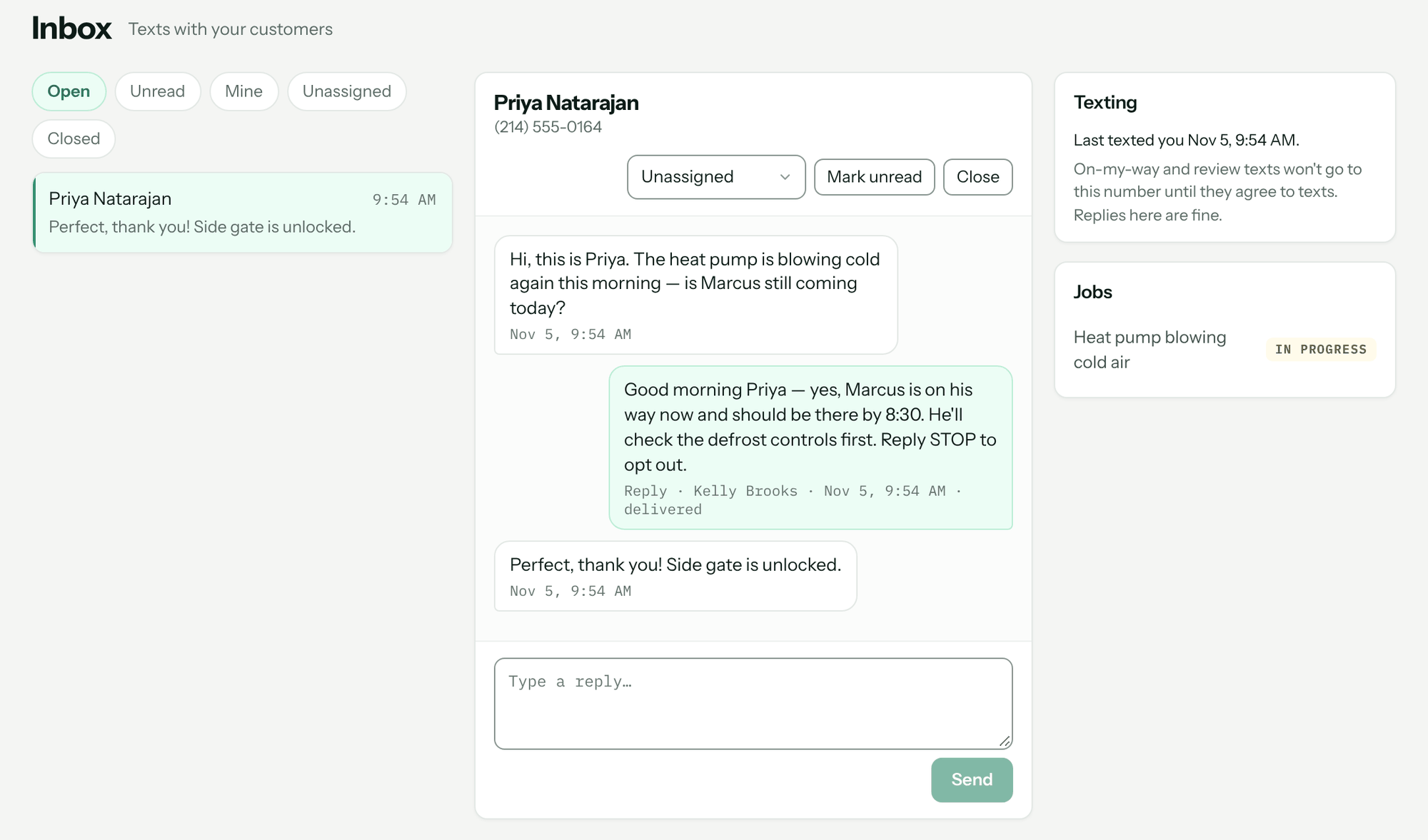
- Filters: Open, Unread, Mine, Unassigned (office only) and Closed.
- Reply in the box at the bottom and click Send (or Ctrl/Cmd+Enter). Your first text in a thread adds "Reply STOP to opt out."
- Assigned to, Mark unread and Close are office actions. A closed thread reopens when they text again.
- Who is this? — a text from a number not on any customer shows as Unknown number. Click Link to a customer, or Create a lead to start one from the thread.
- The Texting box beside the thread shows when they agreed to texts, when they last texted you, and whether On-my-way and review texts will reach them.
- Photos they text you show in the thread.
To start a new thread, open the customer, go to the Texts tab, type your Message and click Send. That needs their agreement on file; if a thread with that number already exists, you're sent to reply there.
If a customer's text sits unanswered for 30 minutes, whoever holds the thread — or the admins — is emailed once. That's on by default under CRM → Automations.
Disconnecting
Disconnect on the Texting card removes Pricebookr's access. Your number and Twilio account are untouched, and who agreed to texts, who replied STOP, and everything already sent are all kept.
Troubleshooting
| You see | Why | Fix |
|---|---|---|
| Texted, shows sent or delivered, customer never got it. | The number isn't registered for A2P 10DLC. | Finish brand and campaign registration in your Twilio console. |
| This number isn't registered for A2P 10DLC business texting… | Twilio refused the message for the same reason. | Register the brand and campaign in Twilio; it takes a few days. |
| Twilio rejected the API key. Check the Key SID and secret… | Wrong key or secret, a deleted key, or a key made outside the US1 region. | Make a new Standard key in US1 and use Replace key. |
| That API key doesn't belong to that Account SID… | The key and the Account SID are from different Twilio accounts or subaccounts. | Use both values from the same account. |
| Texting isn't set up yet. CRM → CRM Admin → Texting. | No Twilio account is connected. | An admin connects one. |
| No Twilio number is chosen to send from. CRM → CRM Admin → Texting. | Connected, but no number picked. | Click Choose number and Use this. |
| No record that they agreed to be texted. Ask, then record it on the customer. | No consent on file. | Ask them; if they say yes, click They said yes — record it. |
| They replied STOP. Only they can undo that, by texting START to your number. | They opted out. | Call or email instead. |
| The only record for this number is a test message an owner sent themselves… | The number was used for Send test. | Ask the customer and record their consent. |
| A review link is needed. Save the one customers should use in CRM → CRM Admin → Texting, under "Ask for a review". | Review requests are on but no link is saved. | Paste your review link and Save. |
| The carrier filtered the message as spam… | Usually an unregistered number, or the wording tripped a filter. | Check 10DLC registration; reword the message. |
| That's a landline, or it doesn't accept texts. | The customer's number can't take texts. | Add a mobile number on the customer. |
Questions: [email protected].