Go to CRM → Jobs, click + New job, pick the customer, address and type, and optionally a planned date and a tech. Then book the actual visit — the truck at the door — from the job's Visits & time section or from Dispatch. A job is the work; a visit is a time a tech is there. One job can have several visits, such as a two-day install.
Who can do what
| Task | Admin / Sales | Field |
|---|---|---|
| Create a job, change title, type and job owner | Yes | No |
| Book, move or cancel a visit | Yes | No |
| See the job | All jobs | Jobs they own or have a visit on (My jobs) |
| Change the job's status, details and resolution | Yes | Yes, on their jobs — status only as far as Complete (no canceling) |
| Move a job to Invoiced or Closed | Yes | No |
| Mark their own visit En route, On site or Done | Yes | Yes |
1. Create a job
Go to CRM → Jobs and click + New job. Choose One-time for a repair or install; Repeats ↻ switches to a maintenance plan (see Recurring maintenance visits and memberships).
| Field | Notes |
|---|---|
| Customer * | Pick from your customers. |
| Title * | What the customer would call it: "No heat — upstairs", "Spring tune-up". |
| Service location * | One of the customer's addresses. If the customer has none, add one on the customer first. |
| Type | Service call, Maintenance, Install or Warranty. Jobs from online booking are Estimate. |
| Planned date and time | Optional. Setting it starts the job as Scheduled. |
| Assign to | The job owner, listed by display name (or email, for anyone without a name). With a planned time and a tech, the job is created with a visit for that tech at that time, as long as the default visit length (CRM Admin → Jobs & field → Default visit length, 120 minutes unless changed). |
| Details | What the customer reported, or the scope. |
Click Create job. Your admin can make details, schedule date or assignee required under CRM → CRM Admin → Jobs & field → Required fields; required fields show a *.
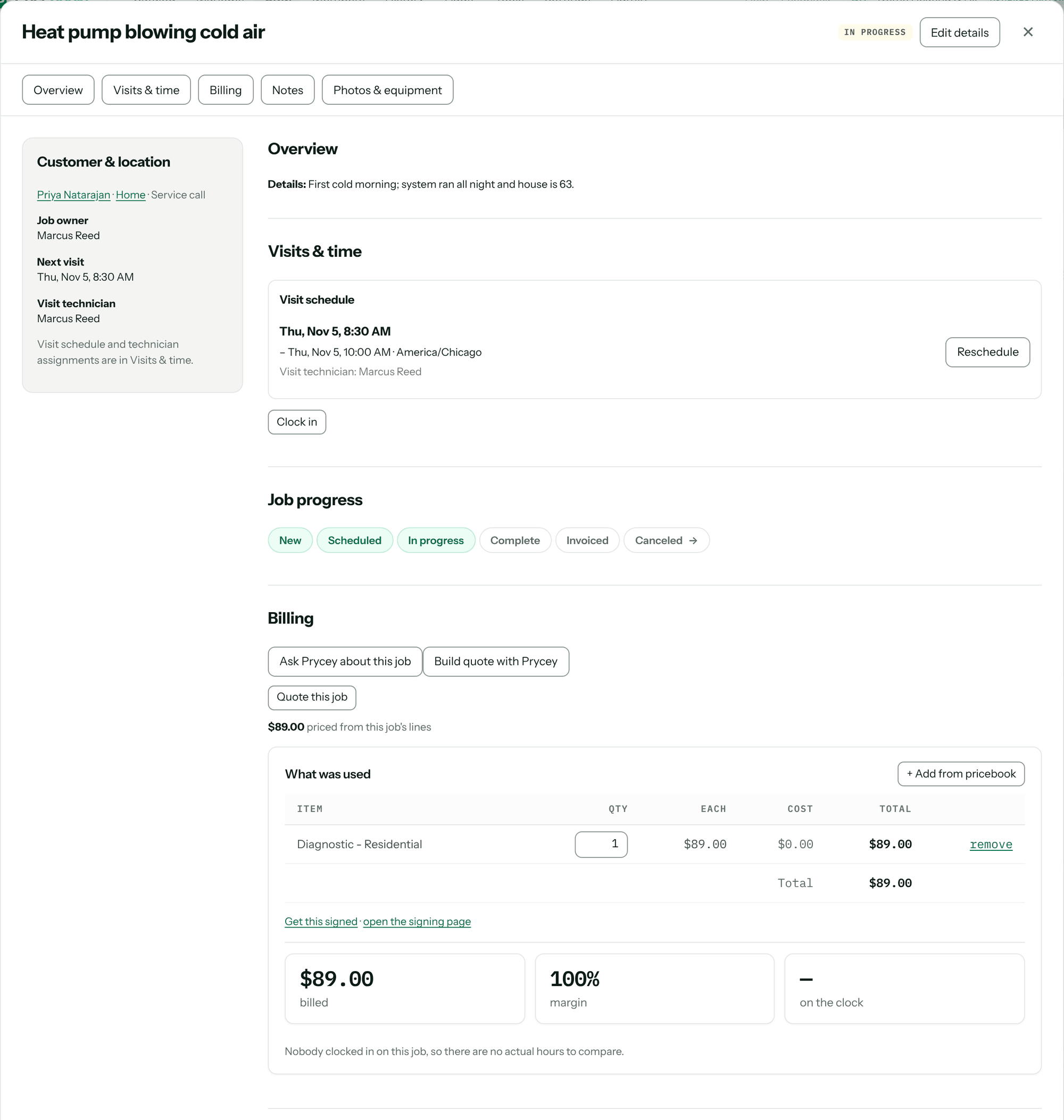
An open job has section links across the top, in this order: Overview, Visits & time, Billing, Notes, Photos & equipment.
A job is also created for you when a customer approves a quote that isn't on a job, and when a homeowner books online.
2. Book the visit
Open the job and go to Visits & time. Click Set time (or Reschedule on an existing visit) to open the visit window:
- Date, with Today, Tomorrow and +1 week shortcuts.
- Start time — type "9am" or pick from the list.
- Duration (minutes), with 30m, 1h, 2h and 4h shortcuts.
- Visit technician — the tech going to this visit. It can differ from the job owner.
Click Save visit. Pricebookr refuses a time when the tech already has a visit or is marked unavailable. You can book the same job from the Dispatch board instead — see Use the Dispatch board.
You'll know it worked when the visit is listed under Visit schedule and the job's Next visit shows the time.
Booking a visit on a New job moves it to Scheduled, and putting a visit in a tech's row makes them the job owner if nobody owns it yet — so the tech can open the job on their phone.
3. Job statuses
CRM → Jobs opens as a Board with a column per status; switch to List for a table you can filter by status. Drag a card to another column, or use the Job progress steps in the job, to move it. Tick show closed & canceled to see finished columns.
| Status | Means | Can move to | Moves on its own when |
|---|---|---|---|
| New | Not on the schedule yet. | Scheduled, Canceled | — |
| Scheduled | A visit or planned date is set. | In progress, New, Canceled | A visit is booked on a New job. |
| In progress | Work has started. | Complete, Scheduled, Canceled | A visit is marked On site, or a tech clocks in on the job. |
| Complete | The work is done. | Invoiced, In progress | The last open visit is marked Done. |
| Invoiced | The customer has a bill. | Closed, Complete | An invoice is issued for the job. |
| Closed | Nothing left to do. | — | — |
| Canceled | Not happening. | New | — |
A Field user can move their job as far as Complete; Invoiced, Closed and Canceled are for the office. Closing a job always checks what's still outstanding — an invoice, payment, customer notice or uploads — and refuses with Still open: … until it's clear. Once a job is finished, its card on CRM → Jobs shows Last visit: and the date instead of Not scheduled.
A job with a second visit still booked stays In progress when the first visit is Done. Cancelling an estimate that was booked online also cancels the homeowner's booking and emails them.
4. Record what was used
In the job's Billing section, What was used is where the tech or office adds the parts and tasks actually used: click + Add from pricebook, search, set the qty and Add. Prices come from the customer's price book. This is what the invoice is built from. Costs and margin show only to people allowed to see cost. Getting the customer's go-ahead on the total is covered in How customers approve quotes and pay deposits.
Write what was found and done in Resolution under Notes, then click Save at the top of the job.
5. Clear "Completed, not closed"
Jobs tend to stop at Complete. At the top of CRM → Jobs, the Completed, not closed panel counts finished jobs that still need something. Click Review to see each one and what it's Still needs:
| Still needs | Do this |
|---|---|
| No invoice | Create and issue the invoice. |
| Invoice is a draft | Issue it. |
| Unpaid | Collect the balance. |
| Customer notice not sent | Send the service report from the job (when your completion notice is on). |
| Photos uploading | Wait for the tech's photos to finish uploading. |
A job with nothing outstanding shows Nothing and a Close job button. See Create, issue and send invoices and Close out a job and send the service report.
Troubleshooting
| You see | Why | Fix |
|---|---|---|
| no locations — add one on the customer first | The customer has no service address. | Open the customer and add a location. |
| This tech already has a visit at that time. Choose another tech or time, or create the job without one and schedule it in Dispatch. | The new job's visit overlaps one the tech already has. | Pick another time or tech, or leave the time off and book it on Dispatch. |
| This tech is unavailable on that day. Choose another tech or date. | The tech is marked unavailable that day on Dispatch. | Choose another tech or date. |
| This tech already has a visit during that time. Choose another tech or time. | Double booking. | Change the time or tech. |
| This job has appointments. Change the visit in Dispatch so its schedule and customer notification stay together. | You changed the job's date or owner on a job whose visits can't be moved with it. | Move the visit itself, from Visits & time or Dispatch. |
| This shop asks for at least one After photo before a job is finished. Add one on the closeout screen. | Your closeout settings require an After photo before a tech finishes a job. | The tech adds an After photo, then marks it Done. |
| cannot move a scheduled job to invoiced | That status change isn't allowed from where the job is (see the table above). | Move it one step at a time. |
| Missing required fields: Details | Your admin made that field required for jobs. | Fill it in. |
| Still open: no invoice. | You tried to close a job that still needs something. | Clear the items under Still needs first. |
| Only the office can invoice, close or cancel a job. | A Field user tried to move a job to Invoiced, Closed or Canceled, or back out of one. | Mark it Complete; the office invoices, closes or cancels it. |
| This job isn't available — it may have been deleted, or it isn't assigned to you. | A Field user opened a job they don't own or have a visit on, or it's in the trash. | Ask the office to assign it, or restore it from Trash. |
Questions: [email protected].