The customer opens the quote link, agrees to get it electronically, picks one option, types their name and email, ticks the box and clicks Approve. If you asked for a deposit, they can pay it right there by card or bank transfer. Approving opens a job (or prices the job you attached), emails both sides a PDF copy, and saves a tamper-evident approval record on the quote.
What the customer sees
- Before we show you your quote — a short notice that you'd like to give the quote electronically. They click I agree — show me the quote.
- The quote — every option with its lines, Total and, if you set one, Deposit due on approval. Then your Terms & conditions and Your right to cancel notice if you turned them on.
- Approving one option — Your name, Your email, and a box confirming they approve that option and that this is their electronic signature. They click Approve plus the option name. They can also click Decline this quote.
- One more step (only if you require a code) — they enter the Six-digit code from their email and click Approve my quote.
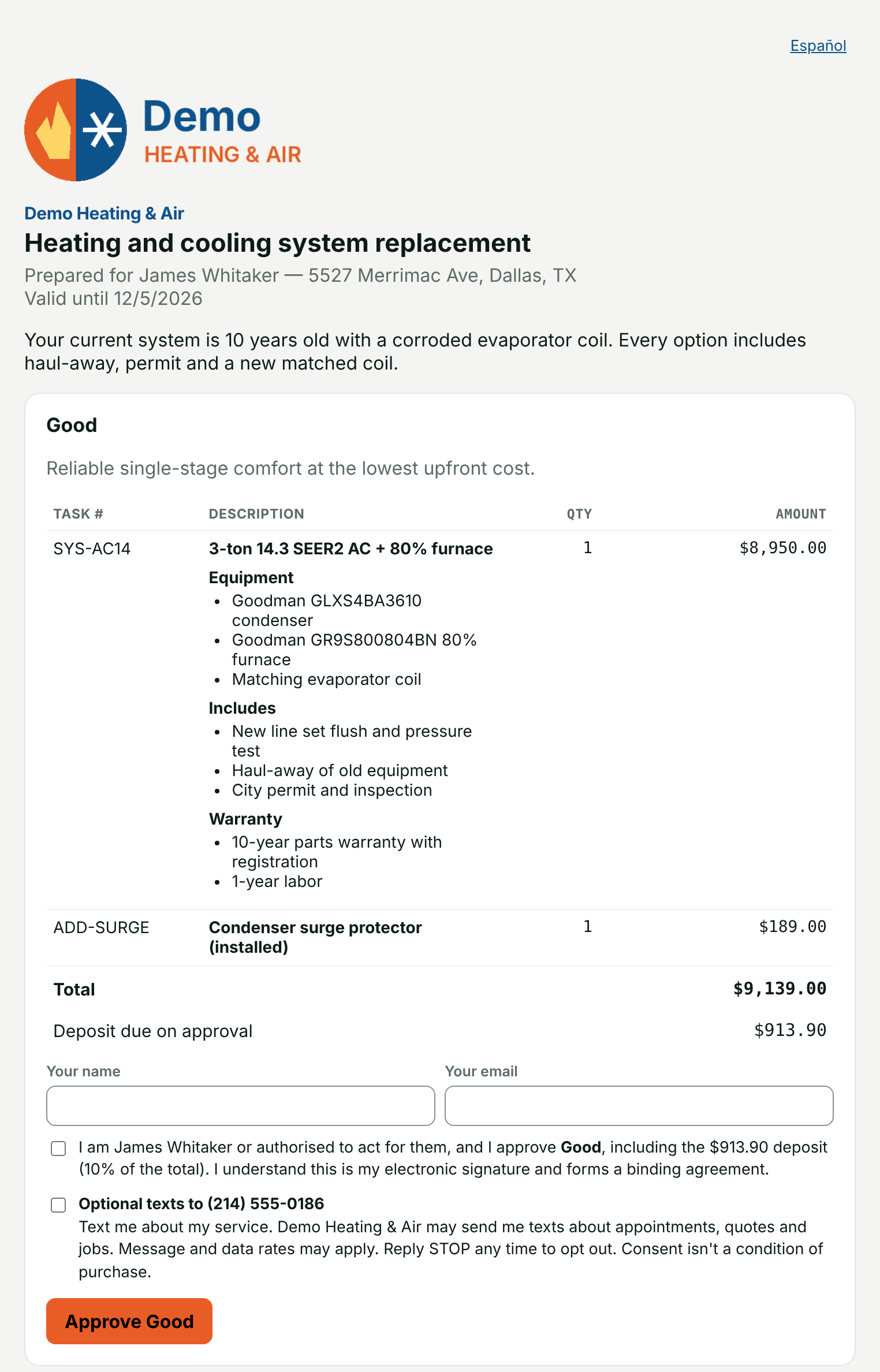
The signature is the typed name plus the ticked box; there's no drawn signature. If your texting is set up, the form can also offer an optional box to receive texts.
You'll know it worked when the quote shows Approved with approved by the customer's name, and your admins and sales members get an email headed Approved: with the quote title and total. The customer gets Your approved quote with a PDF.
Approval settings
An admin sets these under CRM → CRM Admin → Quotes → Quote approval, then clicks Save approval settings. All are off until you turn them on.
| Setting | What it does |
|---|---|
| Terms & conditions | Shown above the approve buttons and saved word-for-word onto each approval. Editing it later never changes what someone already agreed to. |
| Show a 3-day right-to-cancel notice | Adds a cancellation notice filled in with your name, address and the approval date. Needs your business address under Settings → Company first. Whether the rule applies to a sale is a question for your attorney. |
| Email a code before approving | Emails a six-digit code the customer must enter. It proves they could read mail at that address, not who they are. |
| Only on quotes of at least | Blank means every quote needs a code; otherwise only quotes at or above that amount. |
| Send the code to the address the quote went to | Instead of the address typed at approval. Stronger, but a spouse approving from another inbox can't finish until you resend the quote to them. |
| Approval links expire after | Days from when the quote is sent (default 30). A quote with its own Valid until date uses that instead. |
The approval record
Open an approved quote to see the Approval record panel:
| Row | Shows |
|---|---|
| Approved | Date and time, and — entered by staff if your office used Mark accepted… |
| Name given / Email given | What the customer typed, then whether it matches what you had, e.g. Matches an address the quote was sent to or Doesn't match what we had. Mismatches are shown, never acted on. |
| IP address | Where the approval came from. |
| Code check | Verified with when and where the code went, or None. |
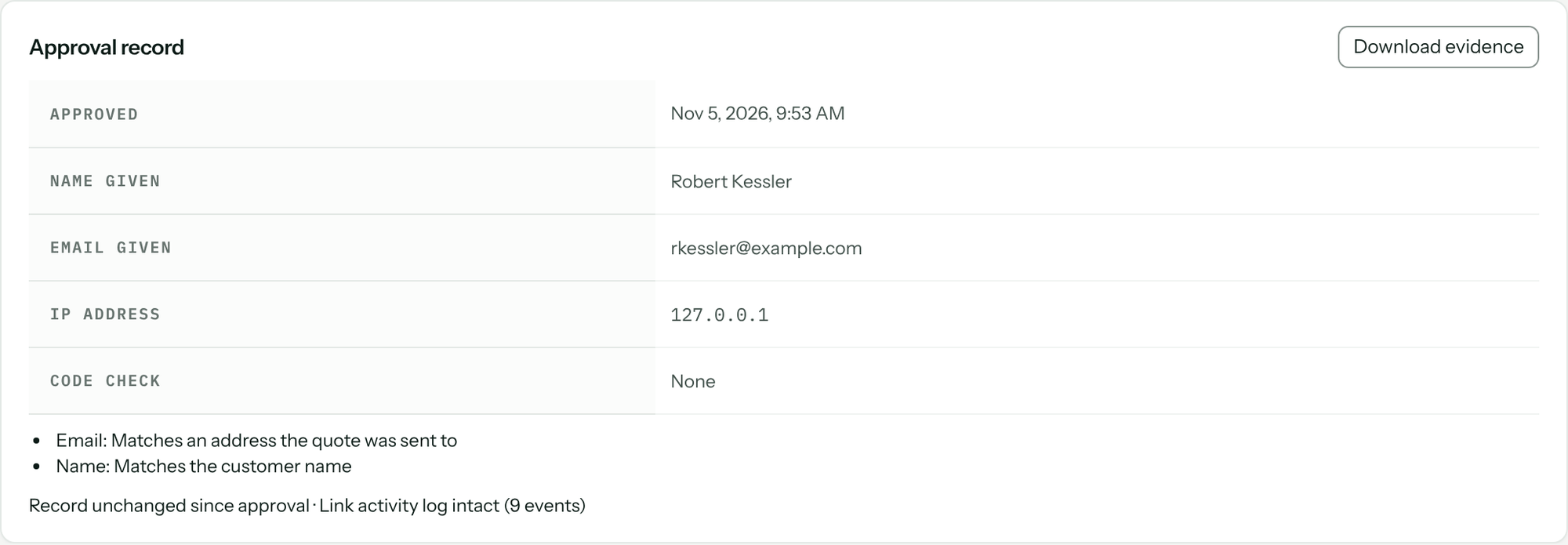
When the customer approves, Pricebookr freezes a copy of the quote as they saw it and stores a SHA-256 fingerprint of it. The panel re-checks it every time: Record unchanged since approval and Link activity log intact mean nothing has been edited since. Download evidence gives you a .zip with the certificate, the customer's PDF, the frozen quote, the link's event log and a VERIFY.txt explaining how anyone can check the fingerprint without us.
Deposits
Set the deposit on the quote before sending (Percentage of the option or Fixed amount) — see Build and send quotes. The amount is fixed at approval against the option the customer picked.
- If you take card and bank payments: right after approving, the page shows Deposit due: and Pay deposit. Card or bank transfer, paid to your Stripe account. Set that up first: Set up card and bank payments.
- If you don't: the page says a deposit is due and that you'll be in touch about how to pay it. Record a check or cash yourself with record a payment on the quote's Payments panel — see Collect payments.
- After paying: Deposit of … received. Thank you. A bank transfer shows Payment in progress for a few business days.
On the quote, the Payments panel shows what's received and still due, and the chip changes from Unpaid to Paid. When you invoice the quote, the deposit comes off as Less deposit received.
Expired links
An expired link shows This link expired on the date, with no prices, and a button Ask [your shop] for an updated quote. Pressing it emails your admins and sales members. Take the quote Back to draft, update it, and Send again.
Troubleshooting
| Customer sees | Why | Fix |
|---|---|---|
| Please tick the box to confirm you're approving this quote. | The signature box wasn't ticked. | Tick it and approve again; what they typed is kept. |
| That email address doesn't look right — please check it. | A typo in the email. | Correct it. |
| That code has expired. We can send you a new one. | Codes last 10 minutes. | Click Send me a new code. |
| Too many tries on that code. We can send you a new one. | Too many wrong entries. | Click Send me a new code. |
| We couldn't send your code just now. Please contact us and we'll get this approved for you. | The code email failed. | Take the approval by phone and use Mark accepted… |
| This quote changed or was already approved. Refresh it before approving. | The office edited or approved it while the page was open. | Reload the page. |
| This quote link has expired. Ask the shop to review it. | The link passed its expiry. | Re-send from the office. |
| A deposit of … is due. … will be in touch about how to pay it. | Your Stripe account can't take charges yet. | Finish setup under CRM → Payments → Setup, or collect it by hand. |
| The smallest payment we can take is $0.50. | Stripe's minimum. | Pay at least $0.50. |
Questions: [email protected].