Go to CRM → Quotes, click + New quote, pick the customer and price book, then add up to three options (Good, Better, Best) from your catalog and click Send. The customer gets a link to a page where they pick one option and approve it. Quotes are an office screen: admins and sales members build them; techs present quotes from the mobile app on their own jobs.
1. Start the quote
Go to CRM → Quotes and click + New quote. You can also start one from a job: open the job and click Quote this job (or Quote again (change order) once something on it is sold).
| Field | What it does |
|---|---|
| Customer * | Who the quote is for. |
| Title * | What the customer sees at the top, e.g. "Replace upstairs system". |
| Job | Shown when the customer already has jobs. Leave it on Create a new job when this is approved for a cold quote, or pick a job so approving prices that job instead of opening a second one. |
| Service location | The address the work is at. |
| Pricebook | Which price book the lines are priced from. It starts on your default book. |
| Job type on approval | The type of job created when the customer approves. Only shown when approval will open a new job. |
| Valid until | The last day the prices hold. The approval link stops working after this date. |
| Customer-facing note | Printed on the customer's quote page. |
Click Create quote.
Which price book is used: the one you pick. If the customer is on a membership whose plan has its own price book, that book is chosen for you and the drawer says Priced from the … pricebook — this customer is a member. Change it if the job isn't covered. A membership discount is built into the line prices, and the quote header says so. See Recurring maintenance visits and memberships.
2. Build the options
A new quote has one option. Click Add option (Better), then Add option (Best) — up to three per quote. Rename any option by typing in its name.
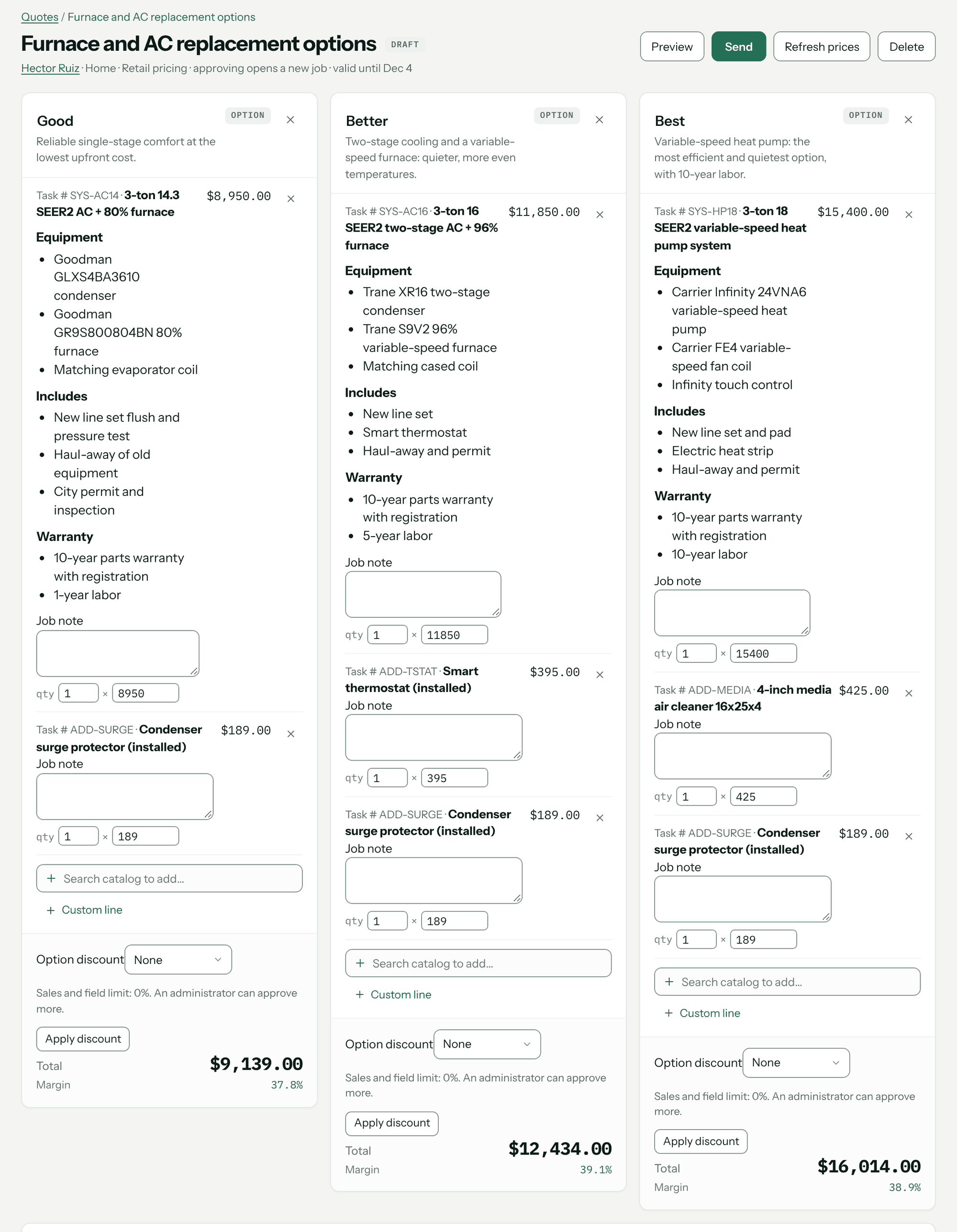
- From the price book: type in Search catalog to add… and click an item. Each result shows its price in this quote's price book, or no price in book. Flat-rate tasks appear grouped under their task family — see Build flat-rate tasks for quoting.
- Anything else: click Custom line, type a description, price and quantity, and click Add.
- Per-job wording: each line has a Job note the customer sees under the line.
- Quantity and price can be changed on each line while the quote is a draft.
Each option shows its Total, and Margin when you're allowed to see cost. Margin is never shown to the customer.
Line prices are copied onto the quote when you add them. Later price book changes don't move a quote you've already built. To re-read current prices on a draft, click Refresh prices.
Discounts
Each option has an Option discount: None, Fixed amount or Percent, with a Discount label (default "Manager discount"). Click Apply discount. Admins can give any discount. Sales and field members are capped by Maximum discount for sales and field (%) under CRM → CRM Admin → Quotes → Quote discounts; the default of 0% leaves discounts to admins.
3. Set a deposit (optional)
In the Deposit panel choose No deposit, Percentage of the option or Fixed amount, then enter the amount. A percentage is a different dollar figure on each option, so the panel shows the range, e.g. "$1,750.00 to $2,800.00, depending on which option they take." How the customer pays it is in How customers approve quotes and pay deposits.
4. Preview
Click Preview to see the exact page the customer will get. Buttons on the preview are inactive.
5. Send
Click Send. The dialog shows who will be emailed before anything goes out: Emailing the customer at their address, and the subject line.
| Way to send | How | Marks the quote Sent? |
|---|---|---|
| Send email in the Send dialog. | Yes | |
| Text | Text quote under Send by text in the same dialog. Goes from your shop's own number — see Text customers from your own number. | Yes |
| Yourself — in person, or from your own email or phone | On a draft, Mark sent and copy link in the Send dialog, under Or deliver it yourself — in person, or from your own email or phone:. It marks the quote Sent and copies its approval link for you to hand over. | Yes |
| On the tech's phone or tablet, with the customer beside you | In the field app, Present quote. The approval page opens on the device; the customer reads it, types their own name and email, and approves. Their copy goes to that email, and the approval record says it was approved in person and by whom. | Yes, for a draft |
| Copy the link again | Once the quote is Sent, click Copy link on the quote. A Sent quote's Send dialog also shows its link under Or send it yourself: with Copy. | No — copying never changes the status |
You'll know it worked when you see Quote emailed to the customer's address and the status chip reads Sent. If the email didn't go, the message says The quote is marked sent, but the email didn't go out. — use Copy link and send it yourself.
Re-send issues a new link and kills the one the customer already has. Send the new one.
A draft has no working link — the Send dialog for a draft shows no link box. The link only opens for the customer once the quote is Sent, by email, text or Mark sent and copy link.
Quote statuses
| Status | What it means | What you can do |
|---|---|---|
| Draft | Not sent. Options and lines are editable. | Edit, Refresh prices, Send, Delete. |
| Sent | The customer has a working link. Locked for editing. | Re-send, Copy link, Mark accepted… on an option, Back to draft to change it. |
| Approved | The customer (or your office) accepted one option. Final. | Invoice this quote. |
| Declined | The customer clicked Decline this quote. | Back to draft, revise, send again. |
| Expired | The Valid until date passed while it was Sent. | Back to draft, update, send again. |
A second chip shows money on the quote once a deposit or invoice is due: Unpaid, Part paid, Paid, Overpaid or Not due yet. Approved means the customer signed; Paid means the money arrived.
Mark accepted… records the approval on the customer's behalf (a phone call, a paper signature). The approval record then says — entered by staff.
Quoting from the field
Techs don't see CRM → Quotes. On the mobile app they build and present quotes for jobs assigned to them, and the customer can approve on the tech's phone (Present for approval) or by text. Prices come from the customer's price book and costs are hidden. See Use the Pricebookr app and Close out a job.
Prycey can draft a quote from a conversation; a person reviews it and clicks Save draft. Prycey can't send a quote. See Prycey.
Troubleshooting
| You see | Why | Fix |
|---|---|---|
| This customer has no email address on file. Add one, text the quote, or use Mark sent and copy link to deliver it yourself. | No email on the customer. | Add an email to the customer, send by text, or click Mark sent and copy link. |
| Texting isn't set up. CRM → CRM Admin → Texting. | No texting number connected. | Connect texting, or send by email. |
| only draft quotes can be edited — pull it back to draft first | The quote has been sent. | Click Back to draft, edit, then Send again (the customer gets a new link). |
| An administrator must approve discounts above N%. | The discount is over your shop's limit for sales and field. | Ask an admin to apply it, or raise the limit under CRM Admin → Quotes → Quote discounts. |
| The discount cannot exceed the option subtotal. | A fixed discount larger than the option. | Lower the discount. |
| This quote changed after your review. Refresh it before sending. | Someone edited the quote while the Send dialog was open. | Reload the quote, check it, send again. |
| link expired — back to draft, then Send, to issue a new one | The link passed its expiry. | Click Back to draft, then Send. |
| no price in book | The item has no price in this quote's price book. | Price it in the book, or switch the quote's price book. |
Questions: [email protected].