On the phone, open the job's Equipment & readings, tap Record measurements, pick the unit, fill in the routine fields and tap Save readings. Readings are saved to that unit's history, so the next tech sees what the system did last visit. Pricebookr then lists what the numbers show and, on the Pro plan, suggests what to check.
1. Choose the routine fields (admin, once)
Go to CRM → CRM Admin → Jobs & field → Routine measurements. Pick an Equipment type, tick the few fields techs should see for it, and click Save routine measurements. Techs can still add any other measurement for one visit. Removing a field here keeps its saved history.
| Group | Measurements available |
|---|---|
| Air | Return, supply and outdoor air temperature; return and supply humidity; total external, return and supply static pressure; airflow (CFM) |
| Refrigerant | Suction and liquid pressure; suction and liquid line temperature; vapor and liquid saturation temperature; superheat; subcooling; OEM superheat and subcooling lower and upper limits |
| Electrical | Blower motor, condenser fan, compressor and inducer current; line voltage; control voltage |
| Heating | Inlet and manifold gas pressure; flame signal (µA DC); flue CO; ambient CO |
2. Record readings on the phone
- Open the job → Equipment & readings → Measurements → Record measurements.
- Pick the unit under Equipment at this location. A unit has to be on the property first.
- Set When (Before work, After work or Recheck) and the operating mode. Stage and supply voltage are optional but make later comparisons fair.
- Fill in the routine fields. Add another measurement adds any other field for this visit only.
- Add Test conditions or notes (optional) and, if you entered OEM limits, the OEM target source (optional) — for example the model's charging chart.
- Tap Save readings.
You'll know it worked when it says Saved to equipment history. With no signal it says Queued on this phone. Will sync when connected. and sends them later.
Read a meter or gauge photo
Instead of typing, tap Read meter photo on the unit, take or pick the photo of your gauges or clamp meter, and tap Read meters. Prycey reads the numbers on the display; the screen shows how many credits it can use, and photos read before are free.
Every value is shown next to a zoomed crop of the display it came from. Values that agree with the other numbers on that screen show ✓ Matches the other numbers on this screen. Anything else needs you to tick I checked … against the display, and amps, volts and temperature readings need you to choose what was measured. Use Remove this reading for anything that doesn't belong, then Save readings. The photos are attached to the readings as evidence.
On the web
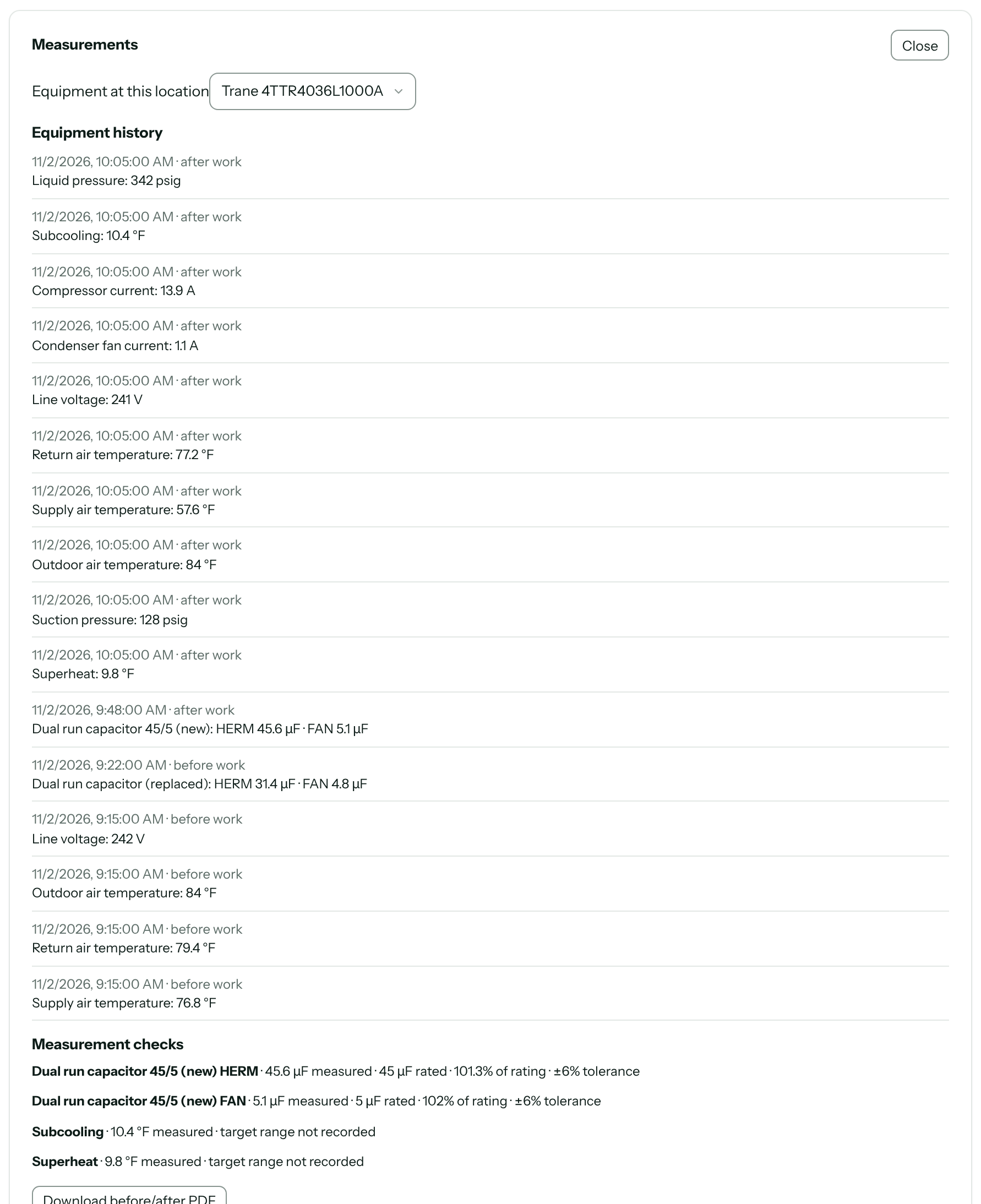
Open the job and use Measurements → Open. It has the same routine readings, plus capacitors and motor details:
- Capacitors: + Add capacitor with its HERM, FAN or Single rating (µF) and Tolerance %, then record readings against it. Replace capacitor starts a new history when you change it out.
- Motors: + Add motor ties a current reading to a physical motor, with its nameplate current and Rating label (FLA, RLA, MCC). That's what lets Pricebookr trend one motor's amps over time.
Download before/after PDF gives you the unit's before-work and after-work readings side by side.
Measurement checks
Under Measurement checks Pricebookr lists what the readings show — on every plan. On Pro, it adds suggestions of what to inspect, each with Dismiss. On Starter it says Action suggestions are available on Pro.
| Check | Shown on every plan | Pro suggestion when |
|---|---|---|
| Capacitor | µF measured, µF rated and % of rating | The reading is outside the tolerance you entered |
| Motor current | Amps measured, the nameplate rating, and the prior comparable reading | Amps exceed the recorded FLA, or current rose across three comparable readings by 10% or more |
| Superheat / subcooling | The measured value and the target range you recorded | The value is outside the OEM range, and the session has the range, a target source, cooling mode, a stage and outdoor air temperature |
You only need to enter the OEM superheat or subcooling range once a visit. When the after-work readings have no range of their own, the check uses the range recorded earlier on the same job in the same mode and stage, and says where it came from, for example 15 °F measured · recorded target 8–12 °F (before-work readings). A range from another job is never used; with none at all it reads target range not recorded.
Comparable means the same operating mode, stage and voltage. A check is never a pass/fail verdict: suggestions tell you what to verify before you change charge or condemn a part.
Where readings show up
- The unit's Equipment history, on the web and the phone.
- The closeout screen: if a unit has before-work readings and none after, it asks you to Take after readings.
- The customer's service report, as recorded, with no pass/fail claim. See Close out a job.
What it doesn't do
- It doesn't connect to Bluetooth probes or gauges. Readings are typed in or read from a photo.
- It doesn't look up OEM targets. You enter the range from the model's literature.
- Capacitor setup and capacitor readings are on the web only.
Troubleshooting
| You see | Why | Fix |
|---|---|---|
| No equipment is recorded at this job's location. | Readings belong to a unit, and the property has none. | Add the unit under Equipment & readings first, or scan its data plate. |
| Add at least one measurement before saving. | Every field was blank. | Enter at least one value. |
| A measurement must be a number. | Text or a stray character in a field. | Enter the number only. |
| Enter a positive supply voltage. | The voltage field has zero or a negative number. | Fix or clear the voltage. |
| More comparable readings or ratings are needed for a check. | No rating, target or comparable earlier reading to compare against. | Record the rating or OEM range, or wait for the next visit's readings. |
| Record a before-work or after-work session to create this report | Only recheck readings exist for this unit on this job. | Save readings marked Before work or After work. |
Questions: [email protected].