Recurring visits and memberships are two separate tools. A recurring job (CRM → Recurring) books the same visit on a schedule. A membership (Pro plan) is the plan a customer pays for — their price, discount and number of tune-ups — set up under CRM → CRM Admin → Memberships and signed from the customer's record. Use either alone or both together. Both are office tools; techs can sign a customer up to a membership but can't change one.
| Recurring job | Membership | |
|---|---|---|
| What it does | Creates jobs on a schedule | Records a plan the customer pays for, with member pricing |
| Books visits | Yes, automatically | No — it counts visits owed; you book them |
| Changes prices | No | Yes — member price book, discount, no trip charge |
| Plan | Starter and Pro | Pro |
Recurring jobs
Set one up
- Go to CRM → Recurring and click + New recurring job. (From a new job, Repeats ↻ opens the same form.)
- Fill in Customer *, Title * (e.g. "Quarterly maintenance"), Service location *, How often *, Job type, First visit *, Ends (optional), Usual tech and Scope.
- Click Create plan.
How often is Weekly, Every 2 weeks, Monthly, Quarterly, Twice a year or Yearly. A series due on the 31st lands on the last day of shorter months.
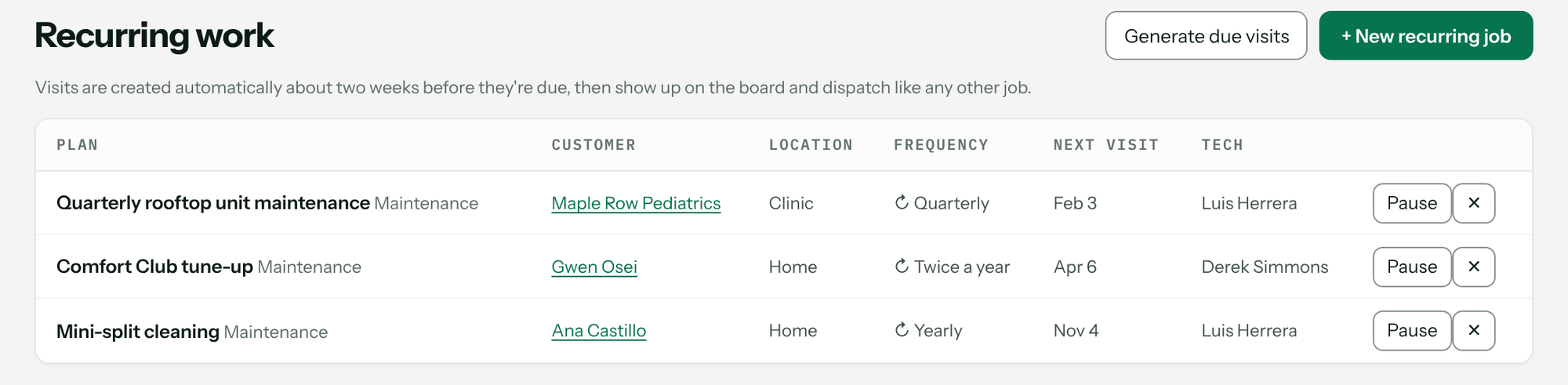
You'll know it worked when the plan is listed with its Next visit. If the first visit is within two weeks, its job is created straight away. The Usual tech is listed by display name, or email if they have none.
With no series yet, the page reads No recurring work yet. Memberships aren't set up here: a customer's membership is on their record, and plans are under CRM Admin → Memberships. Membership plans are on the Service agreements card in that section.
How visits are created
Each visit's job is created about two weeks before it's due, then shows on the board and in Dispatch like any other job. Pricebookr checks twice a day; Generate due visits runs the check now. It never creates the same visit twice.
Change, pause or stop
- Pause stops new visits; Resume starts them again from where the series is due.
- ✕ deletes the series. Visits already created stay on the schedule.
Memberships (Pro plan)
1. Create your plans
An admin goes to CRM → CRM Admin → Memberships, and in the Service agreements card clicks + Add a plan and fills in:
| Field | What it does |
|---|---|
| Plan name | e.g. Comfort Club. |
| Price / Billed | What the member pays, monthly or yearly. |
| Visits a year | Tune-ups included. Drives the visits-owed count. |
| Discount % | Percent off the work. Leave blank if your plan doesn't discount. |
| Pricebook | A member price book for quotes, or Shop's usual. |
| No trip charge | Members aren't billed the trip charge when you bill time. |
| What's included | The words a customer reads on their invoice. |
Click Add plan. A plan with both a price book and a discount gives members both. Editing a plan never changes anyone already on it. retire closes a plan to new signups; current members keep it.
2. Put a customer on a plan
Open the customer. In the Membership panel click + Put on a plan, pick the Plan, choose what it Covers (This customer — every address they have, or one address for a landlord), set a Start date (office only — techs always start today), check the visits under Schedule their visits now, and click Sign up. The terms are frozen on the customer as of the start date; repricing the plan later won't move them.
+ Put on a plan only appears while something is left to cover: a plan on the whole customer covers every address, so once they have one the button is gone.
From then on, new quotes for that customer pick the member price book and include the discount in line prices.
The customer's quote lists those lines at their regular price, then a Subtotal, a line naming the plan with what it saved them (for example Comfort Club member savings (10%)), and the Total they pay. Their approval copy shows the same. A line whose price you typed in yourself shows that price and no savings.
3. Collect the fee
By default a membership is Collected outside Stripe — cash, a card run by hand, or a line on an invoice. To bill it automatically, click start autopay: Stripe opens to collect the customer's card or bank account, and the membership shows On autopay. Payments go to your Stripe account. stop autopay ends the billing but keeps the membership. Autopay needs Stripe connected and an email on the customer.
4. The visits
Signing up schedules the plan's visits. Two a year default to a Cooling tune-up on April 15 and a Heating tune-up on October 15, never sooner than two weeks out and moved off weekends; other counts are spread across the year. Change any date or name, pick Visits at for a customer-wide plan with more than one address, or untick Schedule their visits now to book them yourself.
Each visit repeats every year on its date. Its job appears on Dispatch two weeks ahead, unassigned, and counts toward the membership. The panel shows the year's visits as done, booked, scheduled and still to book; the Dashboard lists Owed a visit members with tune-ups nobody has scheduled.
When a membership ends, its visits stop, and any already on the board for after the end date are cancelled. Putting the member back on restarts them from their next date.
Membership states and actions
| State | Meaning |
|---|---|
| Active | Member pricing applies. |
| Past due | Set by your office with mark past due; mark current clears it. |
| Ends [date] | Cancelled with cancel at end of term; they stay a member through the date they've paid for. |
| Canceled / Ended / Expired | No longer a member. end today removes the member price immediately; put back on restores it. |
On Starter
Making plans and signing customers up need Pro. If you move from Pro to Starter, existing memberships keep renewing, billing and discounting as signed, and you can still cancel them or stop autopay. See Billing and trials.
Troubleshooting
| You see | Why | Fix |
|---|---|---|
| Memberships are part of the Pro plan. Memberships you already have keep running. | You're on Starter. | An admin clicks Change plan. |
| A start date other than today has to be set by the office. | A tech tried to backdate. | Sign up today, or have the office set the date. |
| Stripe isn't taking payments for this shop yet. Finish connecting the account first. | Autopay needs Stripe. | Set up payments. |
| This customer has no email address. Stripe needs one to send the receipt and to chase a failed payment. | No email on the customer. | Add one, then start autopay. |
| This membership is already on autopay. | It's already billing. | Nothing to do. |
| no locations on this customer | A recurring job needs a service address. | Add a location to the customer first. |
| A recurring visit didn't appear | It's more than two weeks out, or the series is paused. | Check Next visit; click Resume or Generate due visits. |
Questions: [email protected].