Open the customer, find the Customer portal panel and click Create portal link, then copy the link and send it to them yourself. The link works for 30 days. An admin sets your logo and colors once under CRM → CRM Admin → Branding; they appear on the portal, quotes and invoices.
1. Brand it (Admin, once)
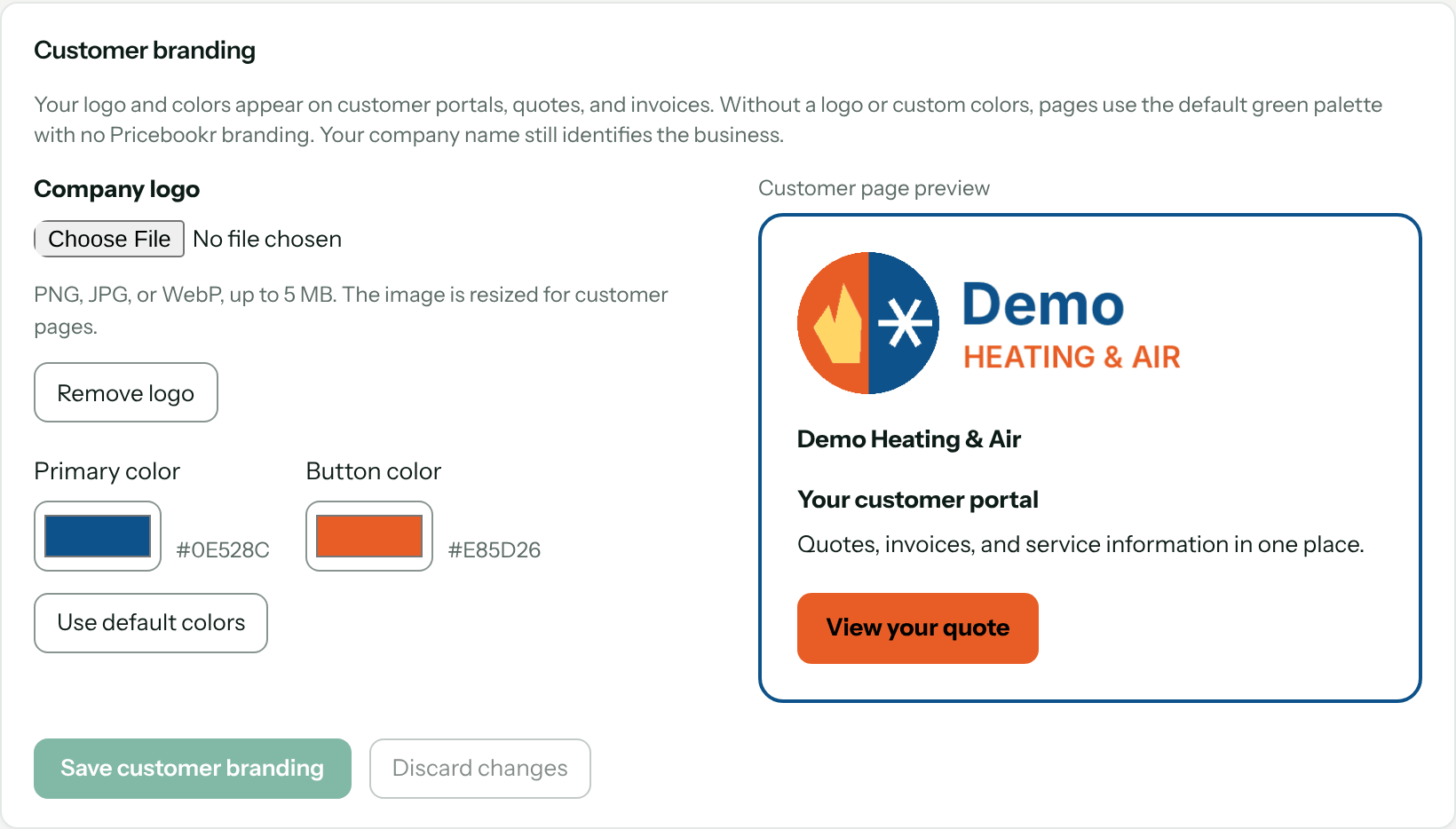
Go to CRM → CRM Admin → Branding. The Customer branding card has:
- Company logo — a PNG, JPG or WebP, up to 5 MB. It's resized for customer pages.
- Primary color and Button color — pick from the color boxes. Use default colors goes back to the standard green.
The Customer page preview beside the settings shows how it will look. Click Save customer branding.
Without a logo or custom colors, customer pages use the default green with no Pricebookr branding. Your company name always identifies the business.
2. Create a customer's link
Open the customer from CRM → Customers. In the Customer portal panel, click Create portal link. Admin and Sales users can do this; Field users don't see the panel.
The link appears once, with Open customer portal to check it and Copy portal link to copy it. Paste it into an email or text to the customer. Creating a link doesn't email or text anyone on its own.
You'll know it worked when the panel says Access active until a date 30 days out.
For privacy, an existing link can't be shown again. If you need to send it again, click Replace portal link — that makes a new link and the old one stops working immediately.
What the customer sees
A page with your company name, logo and colors, headed Customer portal, greeting them by name. It has six sections:
| Section | What's in it |
|---|---|
| Quotes | Quotes you've sent, approved, declined or that have expired — never drafts. Each opens the quote's own page, where a sent quote can be reviewed and approved. |
| Invoices | Issued and voided invoices, with the original total and any deposit applied. Each opens the invoice page with its current balance and payment options. |
| Payments | Payment history by method (card, bank transfer, cash, check), including payments still processing and refunds. |
| Memberships | Their maintenance agreements: price, included visits per year, member discount and renewal or end date. |
| Equipment | The systems on file: brand, type, model, serial, install date and warranty dates. |
| Service addresses | The properties on their account. |
The portal is read-only. It never shows your internal notes, access codes, costs or photos. The footer reminds the customer to keep the link private and says when it expires.
Revoking access
Click Revoke portal access. Anyone using the current link loses access immediately and sees "This link is unavailable", with a note to ask you for a new one. Refresh portal status re-reads the current state if you've changed it in another tab.
What it doesn't do
- Links expire after 30 days; there's no setting for a longer one. Make a new link when it runs out.
- Customers can't sign in with a password, book visits or message you from the portal.
- Anyone with the link can view the records — share it only with the customer or their authorized contact.
Troubleshooting
| You see | Why | Fix |
|---|---|---|
| This link is unavailable | The link expired after 30 days, or was replaced or revoked. | Click Create portal link (or Replace portal link) and send the new one. |
| No active portal link. | No link has been made, or the last one expired or was revoked. | Click Create portal link. |
| For privacy, existing links cannot be retrieved. Replace the link if you need to share it again. | The link is only shown when it's created. | Click Replace portal link. |
| A quote isn't in the portal. | It's still a draft. | Send the quote; it appears once sent. |
| Choose a PNG, JPG, or WebP image. | The logo is another file type, such as SVG. | Export the logo as PNG. |
| Choose an image smaller than 5 MB. | The logo file is too large. | Use a smaller export. |
| This image is too detailed. Try a smaller or simpler logo. | The logo couldn't be shrunk enough for customer pages. | Use a simpler or smaller version of the logo. |
Questions: [email protected].