A flat-rate task is a Service item in your catalog that prices a complete job as one line. Build one under CRM → Quotes → Tasks: click New task, set its task number, labor cost and price, add the parts it uses, and write the scope the customer reads. There's no separate task list to keep: tasks live in the same catalog as your parts and labor, and the quote search finds them.
How tasks fit your catalog
| Catalog item | How you use it |
|---|---|
| Run capacitor (Product) | Quote it on its own, or include it as a part in a task. |
| Replace run capacitor (Service) | The flat-rate task: one line, one price, labor cost entered on it, capacitor included as a part. |
| Trip charge (Service) | Quote it separately when the task price doesn't already include it. |
Product or Service controls Jobber sync and whether an item can be a part in a task. Only Product items can be included parts. Labor is entered as a cost on the task, not added as a part.
1. Open Tasks
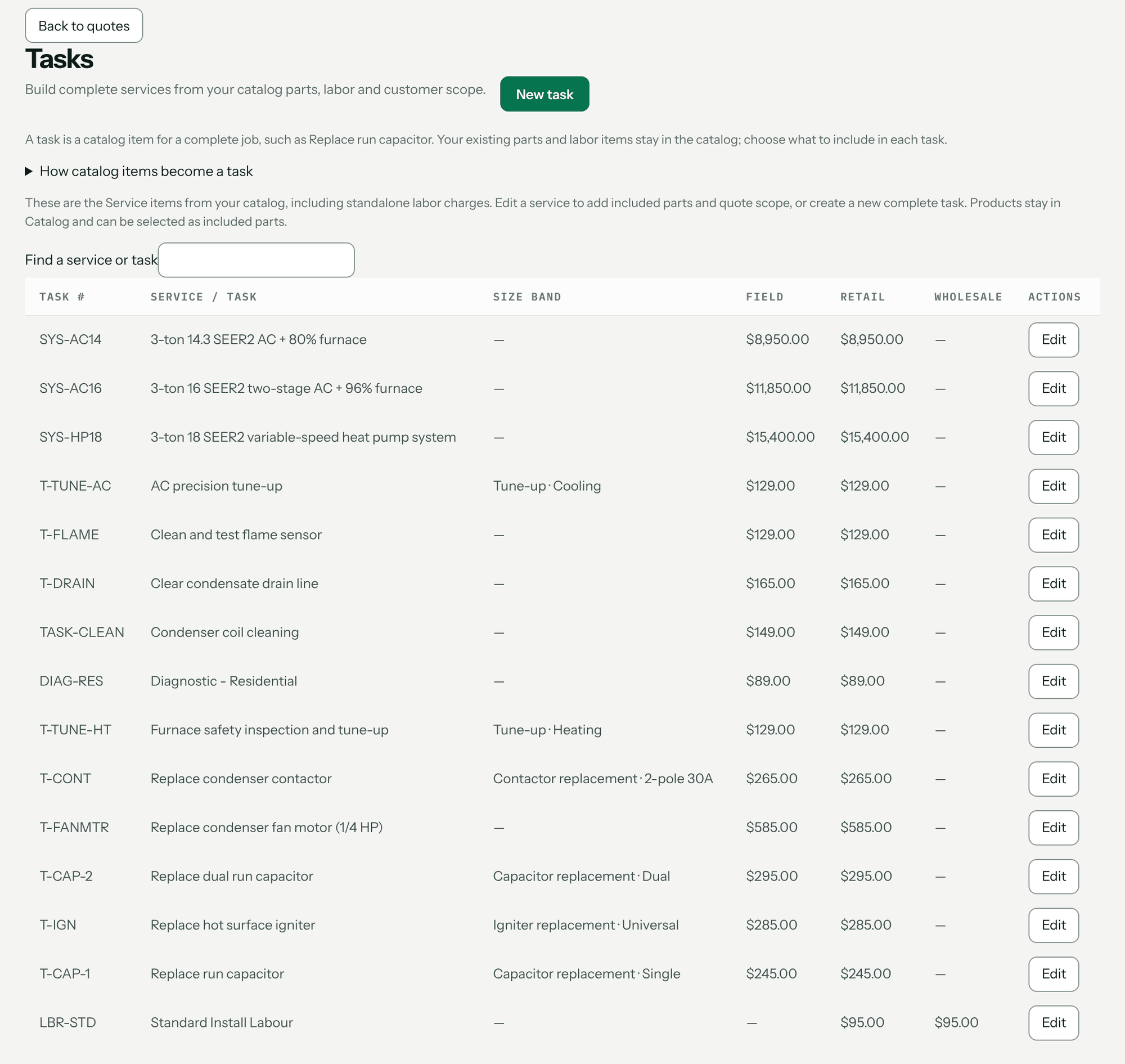
Go to CRM → Quotes and click Tasks. The list shows every Service item with its Task #, Size band and price in each price book. Search with Find a service or task. Click Edit on an existing service, or New task to start one. Back to quotes returns you.
2. Name and price the task
- Name the work, e.g. Replace run capacitor.
- Set the SKU. It prints as the Task # on quotes.
- Under Cost is material + labor, enter Labor. Leave Material for the parts step.
- Book hours are for scheduling only; they don't price anything.
- Set the Sales tax category. Flat-rate task (part + labor) taxes only the material share, worked out from the material/labor split — see Create, issue and send invoices.
- Under Pricing by pricebook, set a price per book, or leave it blank to follow your markup schedule.
- Click Save task and choose parts. The editor stays open on the saved task.
3. Add the included parts
Open Task setup and quote copy. Under Included parts (task components), search with Find a product component, click Add on each part, set its Qty, and click Save components.
Parts don't change the task's cost by themselves. The panel shows Saved material cost beside Rolled-up material cost, and a Cost drift badge when they differ. To use the parts' total as the task's material cost, click Apply rolled-up cost, review the proposal, and click Confirm material cost. Prices that follow your markup schedule can recalculate after that; hand-set prices stay as they are.
Included parts are internal. They are not extra charges on the quote, and they don't reserve or use up stock.
You need to be able to see cost to change parts or apply cost. Admins always can.
4. Write the customer-facing scope
Under Customer-facing scope (quote copy), click Add detail in each section — Equipment, Includes, Warranty, Exclusions — one bullet per detail. Say plainly whether diagnosis and the trip charge are included. Click Save changes.
5. Quote it
In a quote option, search the catalog and click the task. It lands as one line: Task # and name, your scope bullets underneath, one price. The scope is copied onto the quote when the line is added, so editing the task later doesn't rewrite quotes already built. Invoices show the warranty section.
You'll know it worked when the customer's quote page shows a Task # column and your bullets under the line.
Size bands (optional)
Group sizes of the same job, e.g. RTU replacement 2–4 T and 5–7.5 T, under Optional size bands: set Task family, Band label and Band order, save, then use Add band to copy the task for the next size. Review the copy's cost and price before creating it. Apply copy to family copies saved scope text to the other bands (confirm with Confirm family copy); it doesn't copy prices or parts. Each band is its own item with its own cost and price. In the quote search, bands show grouped under the family name.
What it doesn't do
- It doesn't turn existing parts into tasks for you.
- Parts can't contain parts — one level only, Product items only, up to 50 per task.
- It doesn't track inventory.
Troubleshooting
| You see | Why | Fix |
|---|---|---|
| Restore or remove unavailable components before applying cost. | An included part was deleted. | Restore it from Trash or remove it, then Save components. |
| Cost drift | The parts' total no longer matches the task's material cost. | Click Apply rolled-up cost if the task cost should follow its parts. |
| Band order must be a non-negative whole number. | Band order takes 0, 1, 2 and so on. | Enter a whole number. |
| Add band is greyed out | Save a task family first. Copying a band requires cost and pricebook edit access. | Save the family, or ask an admin. |
| No parts search box | You can't see cost. | Ask an admin to change your access, or to set up the parts. |
Questions: [email protected].