Pricebookr marks things with small badges rather than extra columns. Most of them answer one question — what will change this price, and what won't? — and the rest are labels. This page covers the catalog, pricebooks, account settings, and history.
Catalog: the badge next to each price
Every price cell on the Catalog carries one of three badges. They tell you what governs that price.
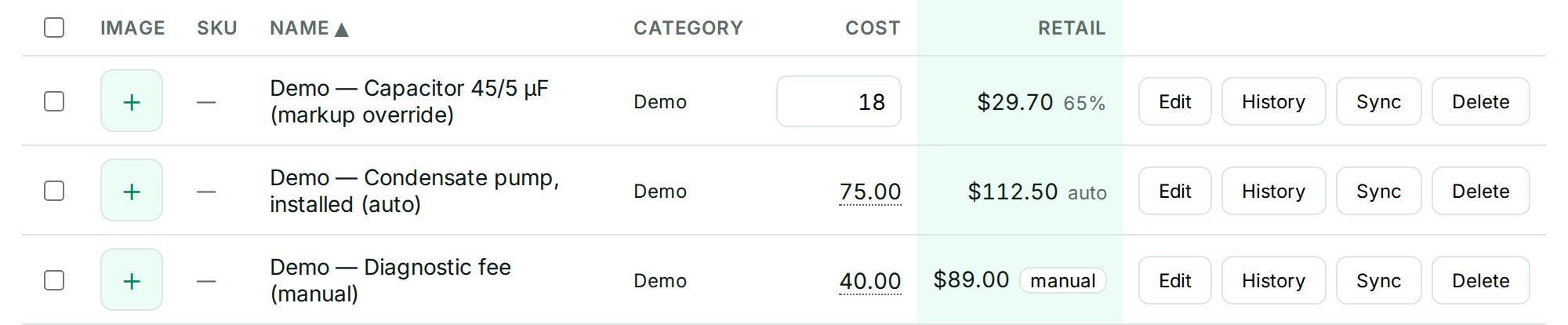
| Badge | What governs the price | What changes it | What never touches it |
|---|---|---|---|
| auto | The pricebook's markup schedule. The item's cost lands in a cost band, and the band's markup sets the price. | Editing the item's cost. Changing the schedule's bands or percentages. Running rules. | Nothing — it always follows cost. (A typed price or a bulk price edit turns it manual.) |
| 65% (any percentage) | A per-item markup override. The price is still computed from cost, but at this item's own markup instead of the band's. | Editing the item's cost. | Schedule changes, schedule runs, and rules. (A typed price or a bulk price edit turns it manual.) |
| manual | A number a person set — typed in, applied by a bulk price edit, or imported from Jobber. | Typing a new price, a bulk price edit, or clicking the badge to hand it to the schedule. | Cost edits and ordinary recalculation. A deliberate hand-set price is protected from schedule runs; a linked Jobber import with usable cost data is included when you explicitly preview markup bands. |
The badges are only shown to members who can see cost. A markup percentage reveals cost (price ÷ (1 + markup)), so for a member without cost access the three states can't be told apart and the cell shows just the price. See Pricebooks & role-based access.
Moving between them
- manual → auto. The manual badge is a button. Click it and Pricebookr shows what the schedule would price the item at before you confirm. If the item has no cost, or no band covers its cost, it tells you that instead and leaves the price alone. To convert many at once, use Manual → schedule… in the Bulk edit bar, which previews every change first — or, when a markup preview finds nothing to do because everything is hand-set, Put these on the schedule… on the Markups tab does the whole catalog from there.
- auto → override. Open the item (Edit) and fill in a markup, margin, or price for that pricebook. The three fields keep each other in sync; whichever you type, the row gets a markup override and shows the percentage.
- override → auto. Clear that pricebook's override fields in the item editor and save.
- anything → manual. Type a price directly, or run a bulk price edit. A bulk price edit makes every row it touches manual — auto and override rows included. The preview says how many rows that is ("12 will switch from the markup schedule to manual") and marks each one, so check that line before you apply: those rows stop following cost until you hand them back to the schedule.
Catalog: Jobber Sync

The blue Jobber Sync pill after an item's name means it is linked to a product or service in your Jobber account. The link is made automatically by Import from Jobber and can't be set by hand. When you push prices, linked items update the Jobber record they came from; everything else is created new.
Imported items arrive with a manual badge, because the price came from a person in Jobber. Nothing changes merely because you imported or added a cost. When you explicitly choose Preview on catalog on the Markups page, linked Jobber prices with usable costs are included automatically; applying that preview puts them on the schedule.
Which badge an imported item gets
It depends where it came from, and in one case on what you chose:
- From Jobber — always manual. Somebody set that price in Jobber.
- From a starter price list — auto. A template is a benchmark to price from, not your prices.
- From a CSV — whichever you picked at import. Import items from a CSV asks whether the
pricecolumn is your prices (manual) or a starting point for your markup schedule (auto), because the file itself cannot say.
Catalog: filter chips

The chips under the search box narrow the table; they don't change anything. Category chips can be combined. No cost data shows only items with no cost — the ones a markup schedule can't price yet, which is why the count is there. The All / Native / Jobber Sync switch splits the catalog by where items came from: Native is everything you created in Pricebookr or imported from a file, Jobber Sync is everything carrying the pill above.
Other marks on a catalog row
- A cost with a dotted underline is a split cost — material plus labor. Hover to see the two parts; edit them in the item editor rather than in the row, so the split is kept.
- A number on the image thumbnail is how many images the item has, when it has more than one. Inside the image manager, the Primary badge marks the one used as the thumbnail.
Settings: pricebooks

default marks the pricebook that stands in for the catalog when a single price is needed. Jobber imports land their prices there, and on push it sends items under their plain names — every other pricebook pushes as "Item name (Pricebook name)". There is always exactly one.
Settings: Jobber connection

connected means Pricebookr holds a valid authorization for the Jobber account named beside it. If the pill is gone and the card offers Connect again, the authorization expired or was revoked — see Connect your Jobber account.
Settings: billing
The Billing card shows one of three states beside its heading: free trial · N days left, active, or payment past due. Past due means your card was declined on renewal and Stripe is retrying; the app keeps working while it does. Update the card under Manage billing. A company on free access granted by Pricebookr shows no pill at all.
To stop paying, use Cancel subscription on the same card. We'll ask why you're leaving — answering is optional and doesn't hold anything up. Your subscription then runs to the end of the period you've already paid for, and a banner shows the date with a Keep my subscription button that undoes the cancellation any time before it. Cancelling stops the billing, not the account: your catalog, pricebooks and history stay, and exports keep working afterwards. To delete the account and its data instead, see Delete your organization.
Members
The grey pill in the Role column is the member's role: ADMIN, SALES, or FIELD. An ADMIN sees every pricebook and always sees cost; SALES and FIELD see only the pricebooks you grant them in that table, and cost only if you tick it. Pending invitations show the role they were sent with. See Invite your team.
History and audit
- v3 and the like, in an item's history, number that item's versions. Reverting doesn't delete anything — it writes a new, higher version with the old values. See Version history & rollback.
- When you preview a catalog rollback, the pills count what the rollback would do: N changed (items whose fields or prices differ), N from trash (items it would restore), N recreated (items that were purged and would be rebuilt from the snapshot), and N to trash (items that didn't exist yet when the snapshot was taken). Nothing happens until you click Roll back catalog.
- In the Audit log, the pill in the Action column is the event name —
item.update,price.set,jobber.push— so you can scan a column of them.