Customers pay online from their quote or invoice link. Everything that comes in is listed under CRM → Payments. Record a check, cash or financing payment with Record a payment on the issued invoice, or record a payment on the quote's Payments panel; an admin refunds a card or bank payment with Refund… in the Payments list. To take cards and bank transfers at all, finish Set up card and bank payments first. Pricebookr never holds the money: it goes to your Stripe account and on to your bank.
Who can do what
| Task | Admin | Sales | Field |
|---|---|---|---|
| See CRM → Payments and Payouts | Yes | Yes (read only) | No |
| Record a check, cash or other payment | Yes | Yes | No |
| Void a hand-recorded payment | Yes | No | No |
| Refund a card or bank payment | Yes | No | No |
| Set up Stripe | Yes | No | No |
Payments list
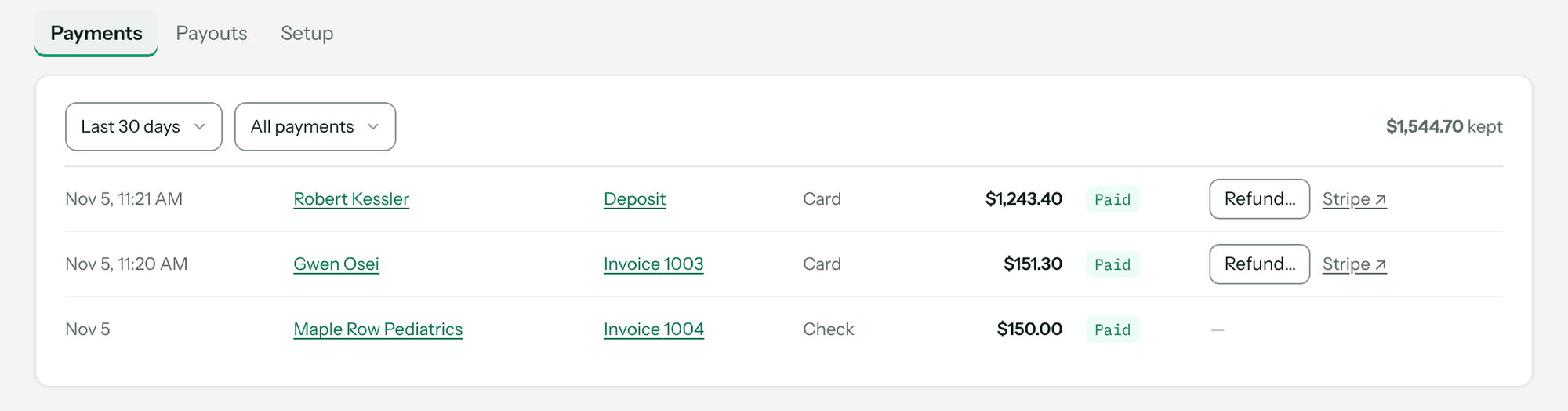
Go to CRM → Payments, Payments tab. Each row shows the date, customer, what it was for (a quote's deposit or Invoice and its number — click to open it), the amount, the net after fees, and a status. Filter by date (Last 7 days to All time) and status. A customer's record has the same list on its Payments tab.
| Status | Meaning |
|---|---|
| Paid | Received. |
| Pending | Started but not cleared. A bank transfer takes a few business days. |
| Failed | Didn't go through. Failed payments stay in the list on purpose. |
| Part refunded / Refunded | Some or all of it was returned. |
| Disputed | The customer's bank is deciding it. Answer it in your Stripe dashboard and don't refund alongside it. |
| Charged back | The bank took it back. |
The header totals what you kept, fees, returned and pending for the period.
Record a check, cash or other payment
You can start from either place:
- From the invoice: open the issued invoice and click Record a payment. This works for any issued invoice, including one prepared at closeout in the mobile app with no quote behind it.
- From the quote: open the quote (from the job, the customer, or the Payments list). Its Payments panel lists each stage — the Deposit and, once issued, Invoice and its number. On the stage that was paid, click record a payment. Use this for a deposit.
Then, in the Record a payment window (it reminds you it's for money that didn't come through the customer's payment link):
- Pick the Method: Check, Cash or Other (financing, another processor).
- Enter the Amount, the Received date (today on your shop's clock if blank) and a Reference such as the check number.
- Click Record.
Nothing is charged and no fee applies; you're recording that the money arrived. It counts toward the balance, shows on the Payments list and goes to QuickBooks if connected.
You'll know it worked when the panel shows the payment as Received and the balance drops.
Keyed it wrong? An admin clicks void on that payment, types why, and clicks Void payment. The row stays in the record, marked void, with the reason. A hand-recorded payment can't be refunded through Pricebookr.
Refund a card or bank payment
- In CRM → Payments, click Refund… on the payment.
- Enter the amount (full or part), pick a Reason, add a note if you like.
- Click Refund plus the amount.
It goes back to the card or bank account it came from and can't be undone. Card refunds reach the customer in 5–10 business days; bank refunds take several days and can fail. Pricebookr's fee on the refunded part comes back to you. A refund you make in your Stripe dashboard is picked up too.
Payouts
The Payouts tab (once Stripe is connected) lists each transfer Stripe sent to your bank: Arrived, To bank, Payments, Refunds, Fees, Status. Click a row to see every payment, refund and fee it contained. New payouts appear on their own; Pull from Stripe fetches older history. With QuickBooks connected, To QuickBooks sends a payout as one deposit that matches your bank feed — see Connect QuickBooks Online.
Money owed
What's still owed, and how late, is on CRM → Invoices in the Outstanding panel. See Create, issue and send invoices for overdue reminders.
Receipts and stuck payments
- A paid row marked no receipt sent has a send it link.
- A payment stuck on Clearing has check with Stripe, which asks Stripe directly — use it when the customer says they paid and you show nothing.
Troubleshooting
| You see | Why | Fix |
|---|---|---|
| That's $X more than the $Y still owed on this. Record it anyway? | The amount is more than the balance. | Check the figure; click Record it anyway if the customer really paid that much. |
| That date is in the future. | Received date after today. | Use the day the money arrived. |
| Card and bank payments are taken through the customer's quote link, not recorded by hand. | Card and bank aren't record-only methods. | Send the customer their link, or record it as Other if it came through another processor. |
| This payment wasn't taken through Stripe. Record the refund by hand instead. | Hand-recorded payments can't be refunded here. | Return the money yourself; an admin can void the row if it was a keying mistake. |
| This payment went through Stripe. Refund it instead — a charge can't be voided. | Void is only for hand-recorded payments. | Use Refund… |
| That's more than the X still refundable. | Part of it was already refunded. | Lower the amount. |
| This payment is disputed. The bank is deciding it — resolve the dispute in Stripe rather than refunding. | Refunding a disputed payment would pay the customer twice. | Respond in your Stripe dashboard. |
| Stripe doesn't itemize manual payouts. | Your Stripe payout schedule is manual. | Switch to automatic payouts in Stripe; future payouts will break down and reconcile. |
Questions: [email protected].