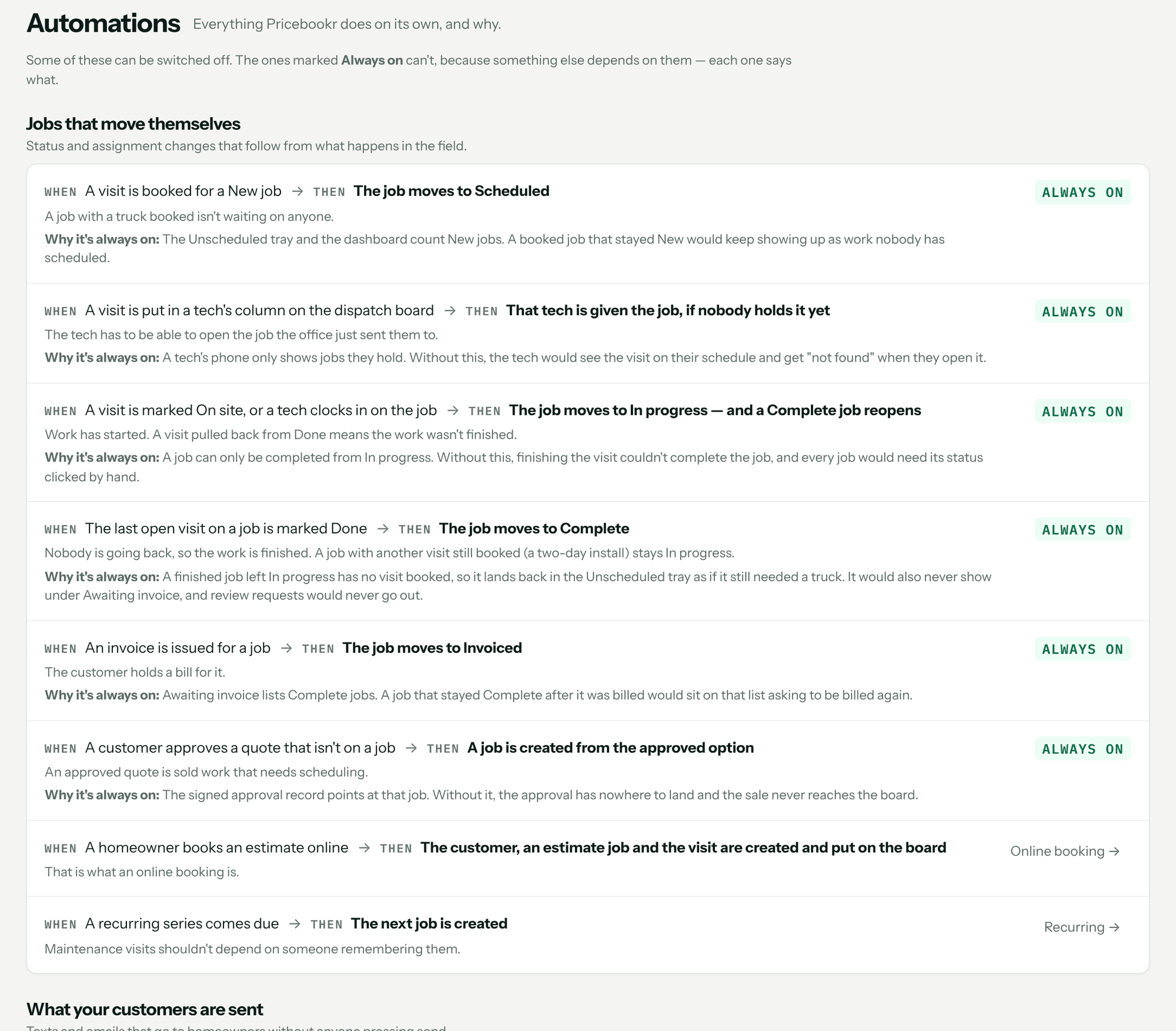
CRM → Automations lists everything Pricebookr does on its own — job status changes, messages to customers, alerts to your team — with a switch on the ones you can turn off. Rows marked Always on can't be turned off because something else depends on them, and each says what. Admin and Sales can read the screen; only an admin can change a switch.
How to read it
Each row reads When something happens → Then what Pricebookr does, with a line on why. On the right is one of three things:
- On / Off switch — you can turn it off. Admins only.
- Always on — with Why it's always on: underneath.
- A link such as Recurring → — it's switched on or off where it belongs, per series or per form.
Jobs that move themselves
| When | Then | Control |
|---|---|---|
| A visit is booked for a New job | The job moves to Scheduled | Always on |
| A visit is put in a tech's column on the dispatch board | That tech is given the job, if nobody holds it yet | Always on |
| A visit is marked On site, or a tech clocks in on the job | The job moves to In progress — and a Complete job reopens | Always on |
| The last open visit on a job is marked Done | The job moves to Complete | Always on |
| An invoice is issued for a job | The job moves to Invoiced | Always on |
| A customer approves a quote that isn't on a job | A job is created from the approved option | Always on |
| A homeowner books an estimate online | The customer, an estimate job and the visit are created and put on the board | Set under Online booking |
| A recurring series comes due | The next job is created | Set under Recurring — pause any series there |
A job with another visit still booked, like a two-day install, stays In progress until its last visit is done. See Create jobs and schedule visits and Use the Dispatch board.
What your customers are sent
| When | Then | Control |
|---|---|---|
| The day before a recurring service visit, between 9am and 7pm in your shop's timezone | The customer receives an email and a text if they have consented to texting | Switch, on by default |
| The office changes a recurring visit's day or time | A reschedule email and consented text are queued; texts wait until 9am–7pm | Always on |
| "On my way" is pressed on a visit | The visit moves to En route and the customer is texted that the tech is on the way | Switch, on by default |
| A job is Complete and paid in full | One text asking for a review, at least 3 hours later and only between 9am and 7pm | Switch, off by default |
| An invoice is due, then 7, 14 and 30 days overdue | One reminder email at each milestone — never repeated, nothing after 30 days | Switch, off by default |
| A payment is received | The customer is emailed a receipt | Always on |
| A customer approves a quote | The customer and the office are emailed the signed copy | Always on |
- With On my way switched off, the button reads En route and only moves the visit; nothing is sent.
- Texts go out from your own Twilio number, connected under CRM → CRM Admin → Texting, and only to customers who have agreed to be texted. See Text customers from your own number.
- The review request can't be switched on until your review link is saved under CRM Admin → Texting; until then the row says Needs your review link first — with a link there.
- Delivery of recurring visit reminders and reschedule messages shows under Dispatch → Customer notifications.
What your team is told
| When | Then | Control |
|---|---|---|
| A customer's text has gone unanswered for 30 minutes | Whoever holds the conversation — or the admins — is emailed once | Switch, on by default |
| A payment is received | Admins and sales are emailed | Switch, on by default |
| Someone fills out one of your web forms | The lead is created and the form's alert address is emailed | Set per form under Web forms |
| A shift has been open longer than your limit | The shift is flagged for review — never closed for the tech | The limit is in Time settings (Pro plan) |
On a plan without payroll time tracking (Starter), the long-shift row isn't listed. With the payment email off, you're still emailed when a customer's receipt couldn't be sent. See Capture leads with web forms and Clock in, breaks and timesheets.
Turn one off
- Sign in as an admin and go to CRM → Automations.
- Find the row and flip its switch to Off.
You'll know it worked when the switch reads Off and a short message confirms it. The change takes effect straight away and is recorded in your audit log.
What it doesn't do
- You can't add your own automations or change the wording or timing of these.
- Housekeeping that changes nothing a shop or customer sees isn't listed.
Troubleshooting
| You see | Why | Fix |
|---|---|---|
| Only an admin can change automations. | You're signed in as Sales. | Ask an admin to flip the switch. |
| Save your review link under CRM Admin → Texting before turning this on. | Review texts need a link to send. | Paste your review link under CRM → CRM Admin → Texting, then switch it on. |
| This one is always on. … | That automation can't be switched off. | The rest of the message says what depends on it. |
| Couldn't load automations: … | The list didn't arrive. | Click Try again. |
Questions: [email protected].