Upgrade my price book does two things, on one screen:
- Photos and book hours for items you have. It fills in only what's missing: your names, prices, costs and Jobber products stay exactly as they are.
- Services your book doesn't have. It lists the starter services we didn't find in your catalog, and adds the ones you tick.
Only an admin can use it.
Where to find it
On the Catalog page, click Upgrade my price book in the toolbar. It appears once your catalog has items.
It also opens from the next steps shown after a Jobber import.
When a starter list has photos or book hours for your items, a line at the top of the Catalog also says how many, for example 113 of your items can get photos or book hours from our HVAC starter list. Review opens the screen on that list. Dismiss it with ×; it comes back only if there's more to add later.

Use it
- Pick the Starter list for your trade: HVAC, Plumbing or Electrical.
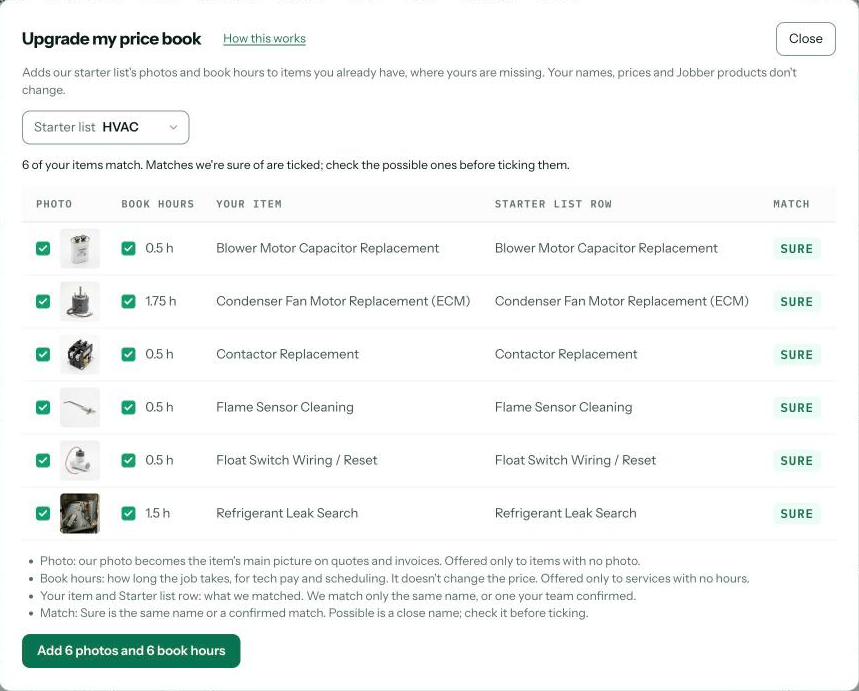
- Review the list of your items that match. Each row shows what would be added.
- Untick anything you don't want. Tick a Possible match only after checking it's the same job.
- Click Add. The button shows how many photos and book hours will be added.
Add services your book doesn't have
Below the matches, Services your book doesn't have lists every service in the starter list that isn't in your catalog under its name or a name we'd match. Each row shows the service, its book hours and how many parts it uses, grouped by category.
- Tick the services you want, one at a time or a whole category at once. None start ticked.
- Optionally enter Your hourly sell rate. With it, a service with book hours is priced at hours × your rate plus its parts, with at least the Minimum labor charge (1.5 hours unless you change it). Leave it blank to use our starting prices.
- Click Add.
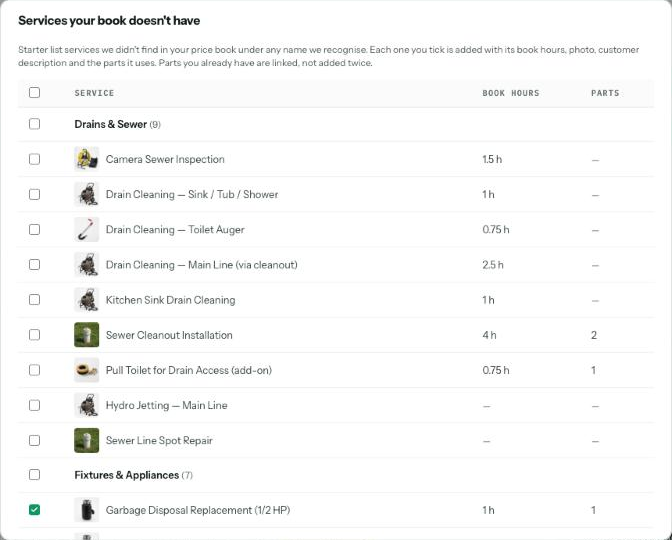
Each service arrives the same way it would from loading the whole starter list: book hours, photo, customer description and its parts list. A part you already have (same name) is linked to the new service, not added twice. Parts you don't have are added, priced by your markup schedule, or by our starter markup if your price book has none.
New services go into your default price book. Nothing is sent to Jobber until you push.
What each column means
| Column | What it means |
|---|---|
| Photo | Our photo becomes the item's main picture on quotes, invoices and the phone app. Offered only to items with no photo. |
| Book hours | How long the job takes on site, used for tech pay and scheduling. It doesn't change the price. Offered only to services with no hours. |
| Your item | The item in your catalog, by the name you gave it. |
| Starter list row | The row in our starter list it matched. |
| Match | Sure means the same name, or a match your team confirmed. Possible means a similar name; it starts unticked. |
How items are matched
An item matches a starter row only when it has the same name (ignoring capitals and punctuation), or a name Pricebookr has confirmed means the same job. Nothing is matched on a guess, so an item you named your own way may not appear. That's deliberate: a wrong match would put the wrong part's photo on your quotes.
Services match services and parts match parts. A part never gets a service's book hours.
Undo
- Book hours: a catalog snapshot is taken before any hours change. Roll it back from History, or edit the hours on the item.
- Photos: open the item and delete the photo. Snapshots don't include photos.
- Added services: a snapshot is taken first, so History can undo the whole batch. You can also delete the items from the Catalog.
FAQ
Does this change my prices or what's in Jobber?
Photos and book hours don't. They aren't part of a price, and neither is sent to Jobber. Added services are new items with their own prices; they go to Jobber only when you push.
Why doesn't one of my items appear?
It either already has a photo and book hours, or its name doesn't match a starter row. Rename it to match, or add a photo on the item yourself.
Can I run it again?
Yes. It only ever offers what's still missing, so running it twice adds nothing the second time.