When the tech taps Mark job complete (or Finish this visit) on the phone, a closeout screen opens for photos, what was done and the customer's report; one tap on the finish button sends it. What the customer gets is set once by an admin under CRM → CRM Admin → Jobs & field → Job closeout. The office then closes finished jobs from CRM → Jobs.
1. Set what closeout asks for (admin)
In CRM → CRM Admin → Jobs & field, the Job closeout card has:
| Setting | What it does |
|---|---|
| Require an After photo to finish a job | A tech can't finish until the job has at least one photo marked After. A photo still uploading counts. Office staff closing a job from the web aren't held to it. Off by default. |
| Nothing | No message to the customer. The default. |
| Job-complete message | An email (and a text during the day, if they've agreed to texts) saying the work is done, what was done, and a link to the invoice if anything is owed. |
| Service report | The same message, linking a report page with what was done, the Before and After photos, readings, equipment and recommendations. No prices. |
| Ask the customer to confirm the work was done | Service report only. The report page asks them to type their name and confirm. It doesn't approve any charge, and nothing waits on it. |
Click Save closeout.
2. Finish the job on the phone
Tap Mark job complete, or Finish this visit if other visits on the job are still open. The closeout screen has:
- Photos — the job's photos, each with Before or After. New photos are labelled as you take them, After by default. Only labelled photos ever appear on the customer's report.
- After readings — appears when a unit has before-work readings but none after, with Take after readings.
- Service report or Customer message — Send to the customer when I finish, and under it where it will go (their email, and a text if they have a textable phone).
- Found, not fixed (optional) — recommendations, one per line, up to ten. Each gets a Get a quote button on the report.
- What you did — the summary the customer reads.
Everything is optional except an After photo, when your shop requires one. Photos still uploading keep going after you finish.
You'll know it worked when the phone says Sent to the customer. The email goes right away. The text waits for daytime in your shop's time zone, and goes only to customers who agreed to texts and haven't opted out.
What the customer sees
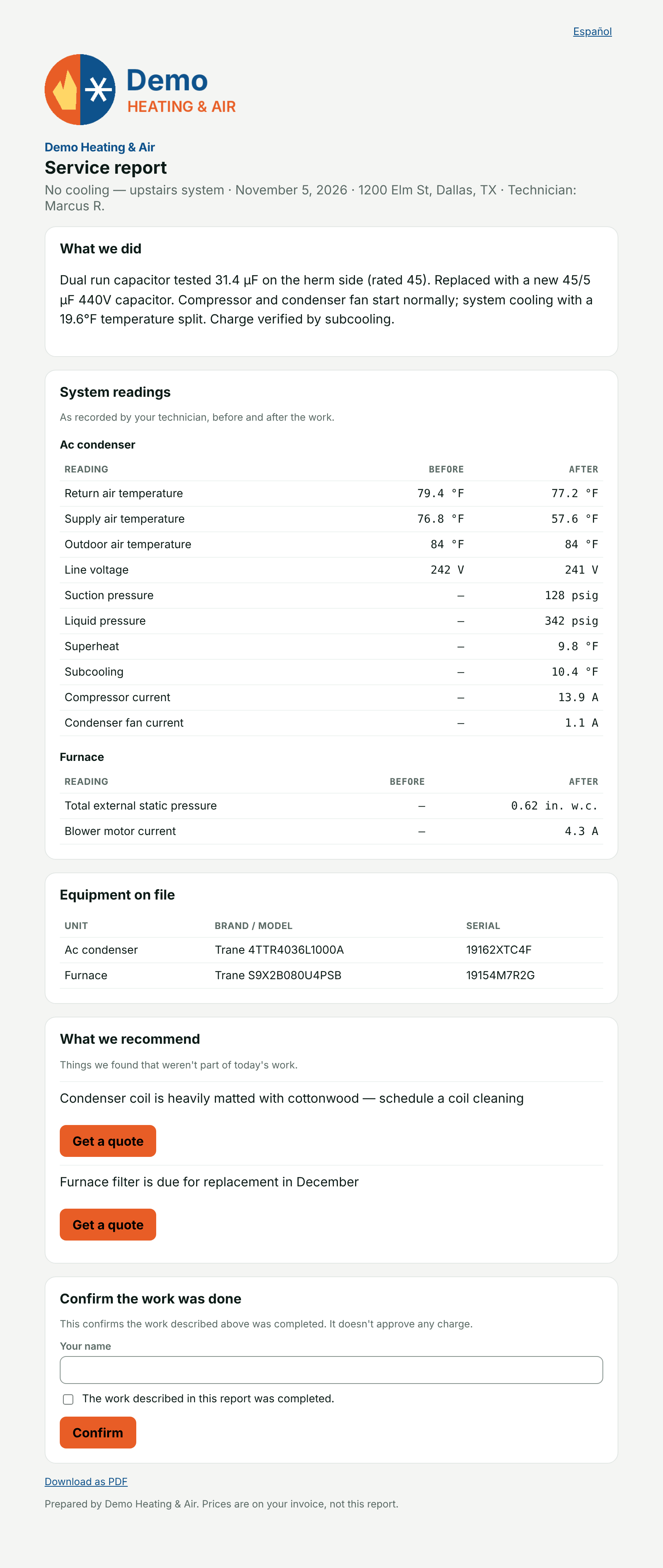
The service report is a private web page at a link only they get. It shows:
- What we did and the technician's name.
- Photos marked Before and After.
- System readings, as recorded by your technician, with no pass/fail claim.
- Equipment on file: unit, brand and model, serial. Units are named the way a tech writes them — "AC condenser", "Mini-split", "PTAC", "RTU", "ERV" — with the unit tag in front when there is one.
- What we recommend, each with Get a quote. A tap is recorded and emailed to your office.
- Confirm the work was done, if you asked for sign-off.
- Download as PDF, and Your invoice is ready. with a link if anything is owed.
The page says Prices are on your invoice, not this report. Customers whose record is set to Messages in → Español get the email, text and report page in Spanish.
From the office
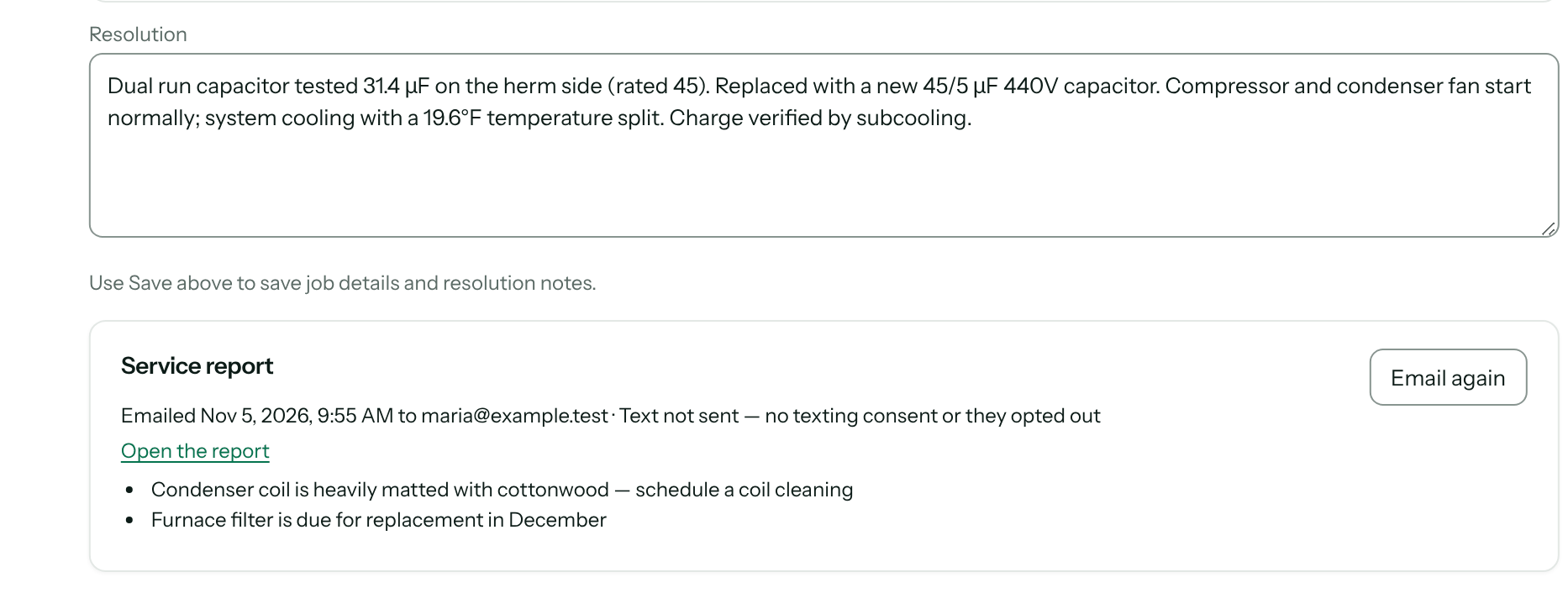
- The job's Service report panel (Admin and Sales) shows when it was emailed and to whom, whether the text went, which recommendations the customer asked to have quoted, and any sign-off. Email again resends the email; the text is never sent twice.
- Jobs finished on the web don't send anything by themselves. Open the job and click Send to customer in the same panel. A tech can do the same on the phone with Photos & service report on a finished job, which also lets them label photos first.
- Completed, not closed sits at the top of CRM → Jobs. Click Review for every finished job and what it Still needs: No invoice, Invoice is a draft, Unpaid, Customer notice not sent or Photos uploading. Jobs with nothing left get a Close job button.
Invoicing and payment are covered in Create and send invoices and Collect payments.
Troubleshooting
| You see | Why | Fix |
|---|---|---|
| Your shop asks for at least one After photo before finishing. Take one or mark one below. | The After-photo rule is on and the job has none. | Take a photo, or mark an existing one After. |
| Your After photo is waiting to upload. Finish opens as soon as it starts uploading. | No signal yet for the photo. | Move to signal; the button opens by itself. |
| No email or textable phone on this customer, so the service report can't be sent from here. | The customer record has no email or mobile number. | Have the office add one, then send from the job's Service report panel. |
| This job has open visits. Choose the visit you finished first. | More than one visit is still open. | Use Finish this visit on the visit you're on. |
| Another technician has a timer running on this job. They must finish their work first. | Someone else is still clocked onto the job. | Finish your visit, or have them stop their timer. |
| Text not sent — no texting consent or they opted out | The customer hasn't agreed to texts, or replied STOP. | Nothing to fix; the email still went. |
| Customer notices are off. Turn them on under CRM Admin → Jobs & field → Job closeout. | The shop setting is Nothing. | An admin chooses a message under CRM → CRM Admin → Jobs & field → Job closeout. |
| Finish the job before sending its report. | The job isn't complete yet. | Mark it complete first. |
| Still open: … | The job still needs an invoice, payment, notice or uploads. Closing always checks, from the web or the app. | Handle what's listed, then Close job. |
| Only the office can invoice, close or cancel a job. | A tech tried to move the job past Complete, or to cancel it. | Mark it Complete; the office invoices, closes or cancels it. |
Questions: [email protected].