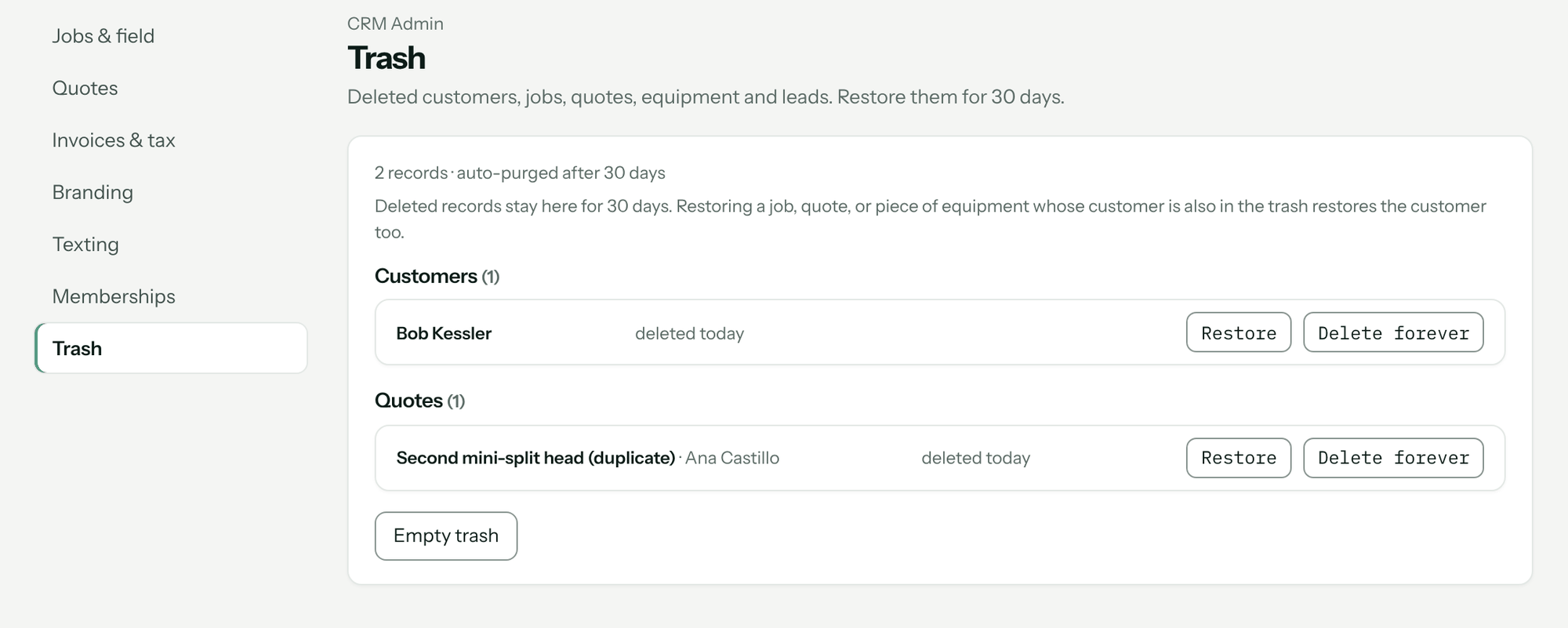
An admin opens CRM → CRM Admin → Trash and clicks Restore next to the record. Trash is the last section of CRM Admin, and the deleted records are listed right on the page — there's no separate button or pop-up. Deleted customers, jobs, quotes, equipment and leads stay in the CRM trash for 30 days, then are deleted for good. Only admins can open the trash, restore, or delete permanently.
What goes to the trash
| Record | How it gets there | Who can do it |
|---|---|---|
| Customer | Delete at the top of the customer record | Admin |
| Quote | Delete on the quote | Admin, Sales |
| Equipment | Remove under Readings, specs & settings on the unit's card | Admin, Sales |
| Lead | Delete in the lead's panel | Admin, Sales |
| Job | Listed here if a job was deleted | — |
The web app has no Delete button on a job. To take a job off the board, move it to Canceled instead; a canceled job can be moved back to New.
Not in the CRM trash:
- Service locations. Remove deletes a location for good, which is why it only works on a location with no equipment and no jobs.
- Photos and video. They go to the Recycle bin on the customer's Photos tab.
- Items in your price book. The catalog has its own Trash.
Restore a record
- Go to CRM → CRM Admin and click the Trash section. The page lists the deleted records grouped as Customers, Jobs, Quotes, Equipment and Leads, each row showing when it was deleted, with a count and auto-purged after 30 days at the top.
- Click Restore on the row.
You'll know it worked when the Trash section says Restored. and the row is gone. The record is back where it was.
How restore treats the customer
- Restoring a job, quote or piece of equipment whose customer is also in the trash restores the customer too. The message reads Restored, along with customer … — otherwise the record would come back under a customer nobody can see. In the list, these rows are marked (customer also in trash).
- Restoring a customer restores only the customer. Anything under them that was deleted on its own — a quote, a unit — stays in the trash until you restore it too.
- Restoring a customer doesn't bring back their old portal link. Deleting a customer turns their link off. Make a new one from Customer portal on their record. See Share a branded customer portal.
- Online bookings stay cancelled. Deleting a customer cancels any visits they booked online and emails the homeowner; restoring doesn't rebook them.
Delete permanently
- Delete forever on a row removes that one record now. For a customer, everything under them goes with it — locations, equipment, jobs, quotes, photos.
- Empty trash at the bottom removes everything in the CRM trash.
- After 30 days, records are removed automatically the next time anyone opens the Trash section.
Permanent deletes can't be undone, and both buttons ask you to confirm first.
Troubleshooting
| You see | Why | Fix |
|---|---|---|
| No CRM Admin in the menu | The trash is admin-only. | Ask an admin to restore the record. |
| forbidden | You're not an admin. | Ask an admin. |
| not found in trash | Someone else restored or permanently deleted it, or it passed 30 days. | Reload the page to see what's in the trash now. |
| The trash is empty. | Nothing has been deleted in the last 30 days, or it was emptied. | A permanently deleted record can't be brought back. |
| A photo you removed isn't here | Photos have their own recycle bin. | Open the customer's Photos tab and click Recycle bin. |
Questions: [email protected].