Open the approved quote and click Invoice this quote. Check the draft, click Issue invoice, then Send invoice. The customer gets a link to a page with Pay now, where they can pay the balance or part of it. A draft recalculates as you edit; issuing freezes every total so a reprint a year later matches what the customer received.
Invoices are an office screen (admins and sales). Techs invoice their own completed jobs from the mobile app at closeout — see Close out a job.
1. Create the invoice
Open the quote (status Approved) and click Invoice this quote. The lines come across at the prices the customer agreed to, from the option they approved. A deposit already paid shows as Less deposit received. Money the customer paid when booking online is credited on the job's first invoice.
One quote, one invoice: a second try is refused so nobody is billed twice.
2. Check the draft
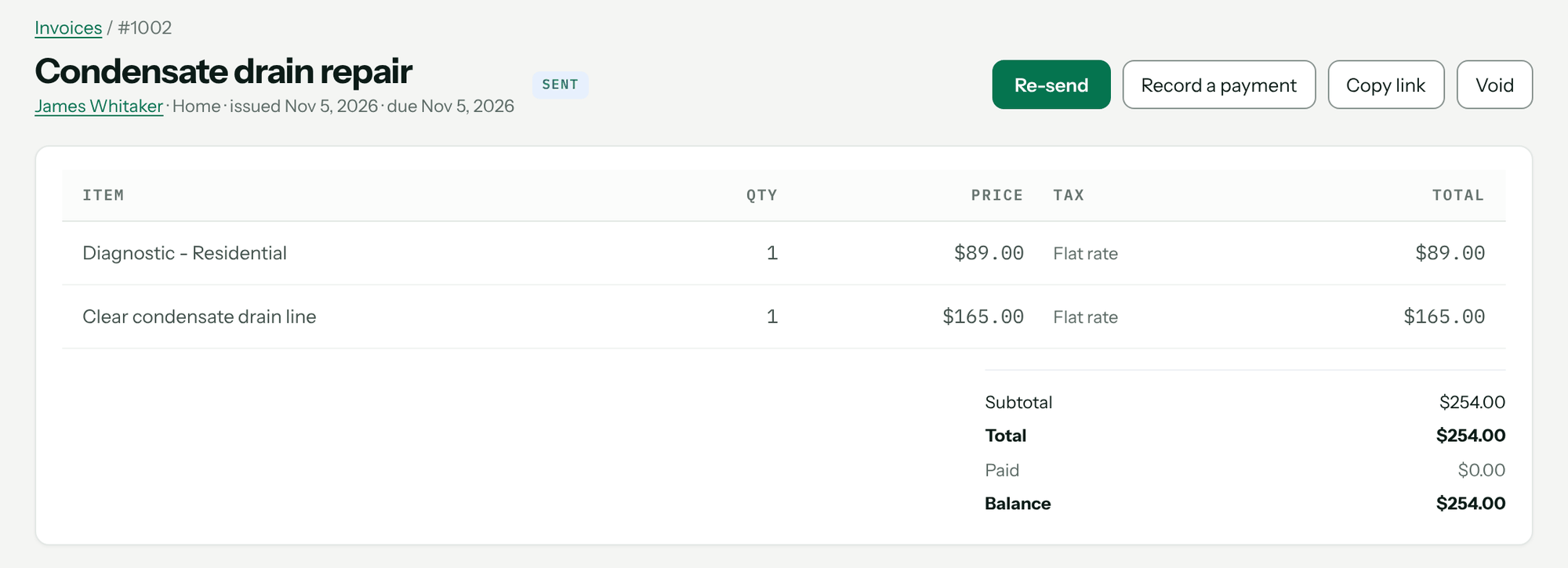
- Lines: change quantity or price, remove a line, or use Add a line (Description, Qty, Price) and Add.
- Bill time: on an invoice linked to a job, Bill time turns clocked hours into labor lines at your labor rate bands (set under CRM → CRM Admin → Invoices & tax → Labor rates), with the trip charge. Review and click Add these lines. Running it again replaces those lines rather than adding a second set.
- Discount: a Name and Percent off the total. It starts from the customer's maintenance agreement; change it for a one-off credit.
- Terms: Payment terms — Due on receipt, Net 15, Net 30, Net 45, Net 60 or Custom date. The due date is worked out when you issue. The box below is Printed on the invoice: payment terms, late-fee policy, anything you want the customer to read.
Yellow warnings at the top mean the invoice would look finished but isn't — usually tax. Fix them before issuing.
3. Set up sales tax (once)
An admin sets this under CRM → CRM Admin → Invoices & tax → Sales tax and clicks Save tax settings. Pricebookr doesn't know your state's rules and won't guess: it applies exactly what you set, the same way on every invoice. Ask your accountant.
| Setting | What it does |
|---|---|
| Collect sales tax on invoices | Off: no tax line, nothing added. |
| How you contract: Lump sum | One price, materials not stated separately. You pay tax to your supplier; the invoice shows no tax line. |
| How you contract: Separated | You buy materials tax-free on a resale certificate and collect tax on the taxable part; the invoice prints a tax line. |
| Default rate | Used where a service location has no rate of its own. |
| My state taxes labor on the work I do | Off: labor isn't taxed and a flat-rate task is taxed only on its material share. On: the whole line is taxed. |
- Per address: set Sales tax rate on a service location in a different jurisdiction (0–25%). Blank uses your default.
- Per customer: Sales tax exempt with a reason and Certificate # on the customer. Their invoices show Exempt.
- Per item: each price book item has a Sales tax category: Flat-rate task (part + labor), Materials only, Labor only or Never taxed. A flat-rate task's material share comes from its material/labor cost split.
4. Issue it
Click Issue invoice. It gets its number and its totals are frozen; tax setting or price book changes afterwards don't touch it. An issued invoice can't be edited: to change one, an admin voids it and you raise a new one. If QuickBooks is connected, issuing sends it there — see Connect QuickBooks Online.
5. Send it
Click Send invoice. The dialog shows who is being emailed. Click Send email, or Text invoice under Send by text, or copy the link under Or send it yourself. Copy link on the invoice does the same any time after issuing.
You'll know it worked when you see Invoice emailed to the customer's address, the status chip changes from Issued to Sent, and the invoice list shows sent with the date.
Record a cash or check payment
On an issued invoice, Admin and Sales users can click Record a payment to record money that didn't come through the customer's payment link — a check, cash, or financing. Nothing is charged; it counts toward the balance straight away. The same thing works from the quote's Payments panel. See Collect payments.
What the customer sees
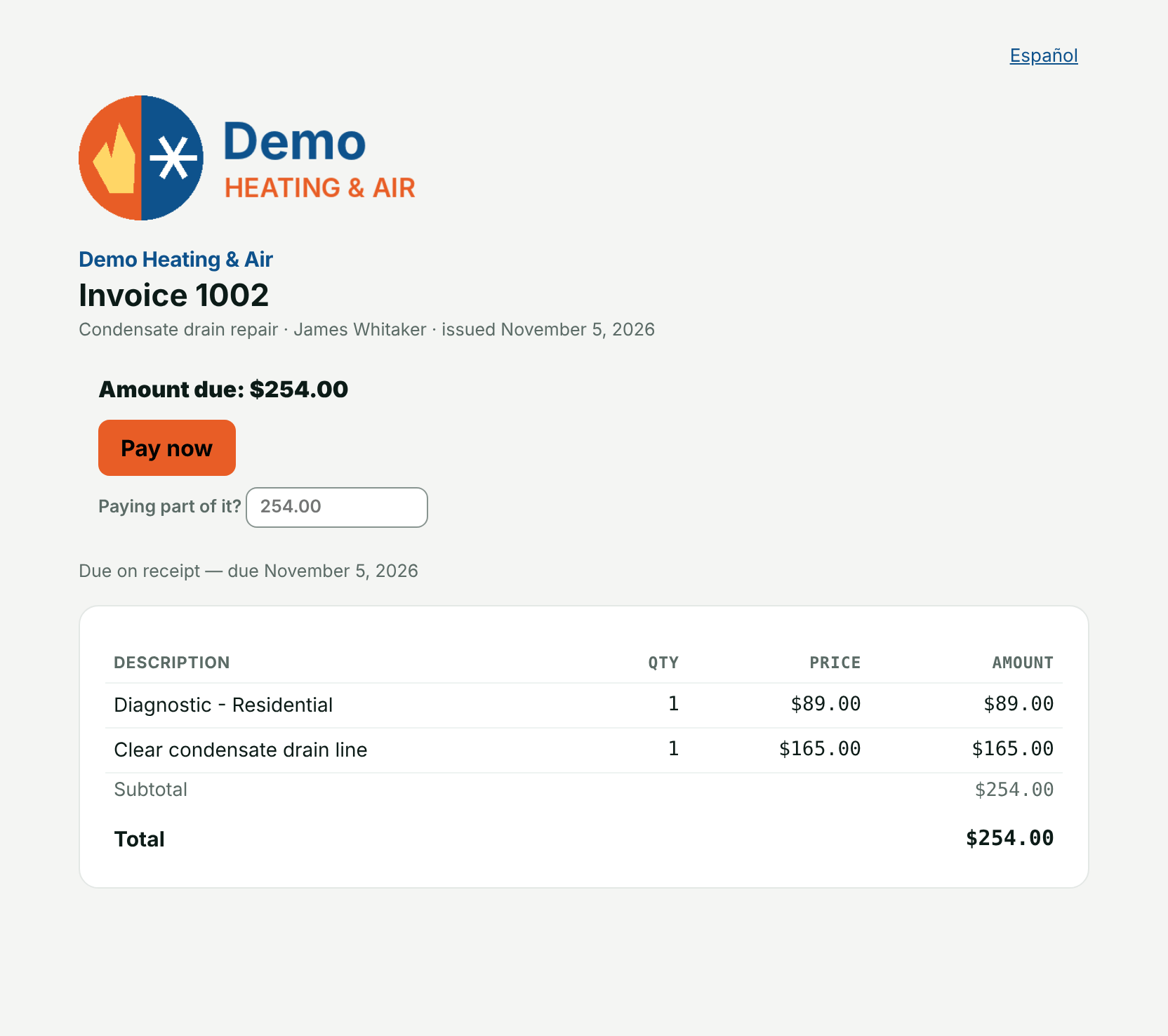
The lines with the warranty section of any flat-rate task, the totals, Balance due, your terms, and Amount due: with Pay now. To pay part, they type an amount in Paying part of it? first. When it's settled the page says Paid in full — thank you. Without online payments set up, the page states the amount due and that you'll be in touch.
A customer with a card on file with your Stripe account — a member who put their membership on autopay — sees Pay with Visa ••4242 (their card) above Use another card or bank. One press pays the balance, or the part typed in Paying part of it?, with that card; if their bank asks to confirm, the page shows the bank's check. The deposit on an approved quote works the same way. Nothing is charged until the customer presses the button.
Invoice statuses
| Status | Meaning |
|---|---|
| Draft | Editable, no number, can't be paid. |
| Issued | Has its number and frozen totals, and is payable, but hasn't been emailed or texted yet. The header reads issued and the date. |
| Sent | Issued, and emailed or texted to the customer at least once. |
| Part paid / Paid / Overpaid | Worked out from the payments, every time. |
| Overdue | A balance is left and your shop's calendar day is past the due day. An invoice due on receipt isn't overdue on the day it's issued. |
| Void | Cancelled by an admin, with the reason kept. Nothing can be charged against it. |
The status filter on CRM → Invoices offers Drafts, Issued and Void; Issued covers sent ones too. The Outstanding panel on CRM → Invoices totals what's owed and splits it into Current, 1–30 days, 31–60 days, 61–90 days and 90 +. To email customers automatically, turn on Remind customers about overdue invoices under CRM → CRM Admin → Invoices & tax → Invoicing: one email on the due date, then at 7, 14 and 30 days past due. Pricebookr never calculates a finance charge.
Troubleshooting
| You see | Why | Fix |
|---|---|---|
| Only an approved quote can be invoiced — the customer hasn't accepted an option yet. | The quote isn't approved. | Get the approval, or use Mark accepted… |
| This quote already has an invoice. Void that one first if you need to start again. | One invoice per quote. | Open the existing invoice from the quote. |
| No invoices yet. Open an approved quote and choose Invoice this quote, or prepare one from the job closeout in the mobile app. | You haven't made an invoice yet. | Do what it says. |
| Tax is switched on but there's no rate for this address — set one on the service location, or a default rate in CRM Admin → Invoices & tax → Sales tax. | A warning on the draft: separated contract with no rate. | Set a default rate, or a rate on the location. |
| There's no tax rate for this address. Set one on the service location, or a default rate in CRM Admin → Invoices & tax → Sales tax, before sending. | The same problem, refused when you issue. | Set a default rate, or a rate on the location, then issue again. |
| … flat-rate line(s) had no material/labor split, so the whole line was taxed. Set the split or tax category on the pricebook item — lines already on this invoice keep what they were added with. | The price book item has no material/labor cost split. | Set Material and Labor (or the tax category) on the item, then delete and re-add the line, or accept it. |
| This shop has no labor rate bands yet. Add one in CRM Admin → Invoices & tax before billing by the hour. | Bill time with no labor rates set up. | An admin adds a band under Labor rates. |
| No labor rate covers when this work happened. Pick one, or add a rate band in CRM Admin → Invoices & tax. | None of your bands covers the day and time the work was done. | Pick a band in the Bill time window, or add one. |
| There's nothing left to bill — the deposit already covers this. Send a receipt instead. | The deposit paid the whole job. | Nothing to invoice. |
| This invoice has been sent. Void it and raise a new one rather than changing what the customer was asked for. | Issued invoices are frozen. | An admin voids it; raise a new one. |
| Money has been received against this invoice. Refund the payment first, or issue a credit — voiding it would strand what was paid. | Paid invoices can't be voided. | Refund first, then void. |
| Issue this invoice before sending it — a draft has no number and can't be paid. | Still a draft. | Click Issue invoice. |
| This customer has no email address on file. Add one, or copy the link and send it yourself. | No email. | Add one, text it, or copy the link. |
Questions: [email protected].