Open CRM → Warranty registration, click Review on a unit, copy the registration packet, register on the manufacturer's site, then record the submission and confirmation in Pricebookr. Pricebookr tracks the work and hands you the details. It does not submit anything to a manufacturer: the registration itself happens on the manufacturer's site, by someone in your office.
What's automatic and what the office does
| Pricebookr does | Your office does |
|---|---|
| Puts every active unit on the list at Needs review as soon as it's added. | Decides whether the unit needs registering. |
| Builds a registration packet from the customer, address and equipment records. | Checks the manufacturer's terms and enters the deadline. |
| Links to the registration site for Trane, Carrier, Daikin and MRCOOL. | Registers the unit on the manufacturer's site. |
| Counts what's open, overdue and due within 7 days. | Records the submission date, confirmation date and confirmation number or document link. |
| Sends a unit back to Needs review when its brand, model, serial or install date changes, clearing the old submission and confirmation. | Re-registers when that happens. |
The screen is for Admin and Sales. Field techs feed it by recording equipment and scanning data plates; see Scan data plates.
1. Work the list
Go to CRM → Warranty registration. The counts across the top (Open registrations, Overdue, Due within 7 days, Outstanding items, Needs review, Awaiting confirmation, Confirmed) cover the whole shop; click one to filter. Search customer, address, equipment or owner finds a unit. The list is ordered by deadline, with units that have no deadline last. A unit missing its brand, model, serial or install date shows Missing equipment details.
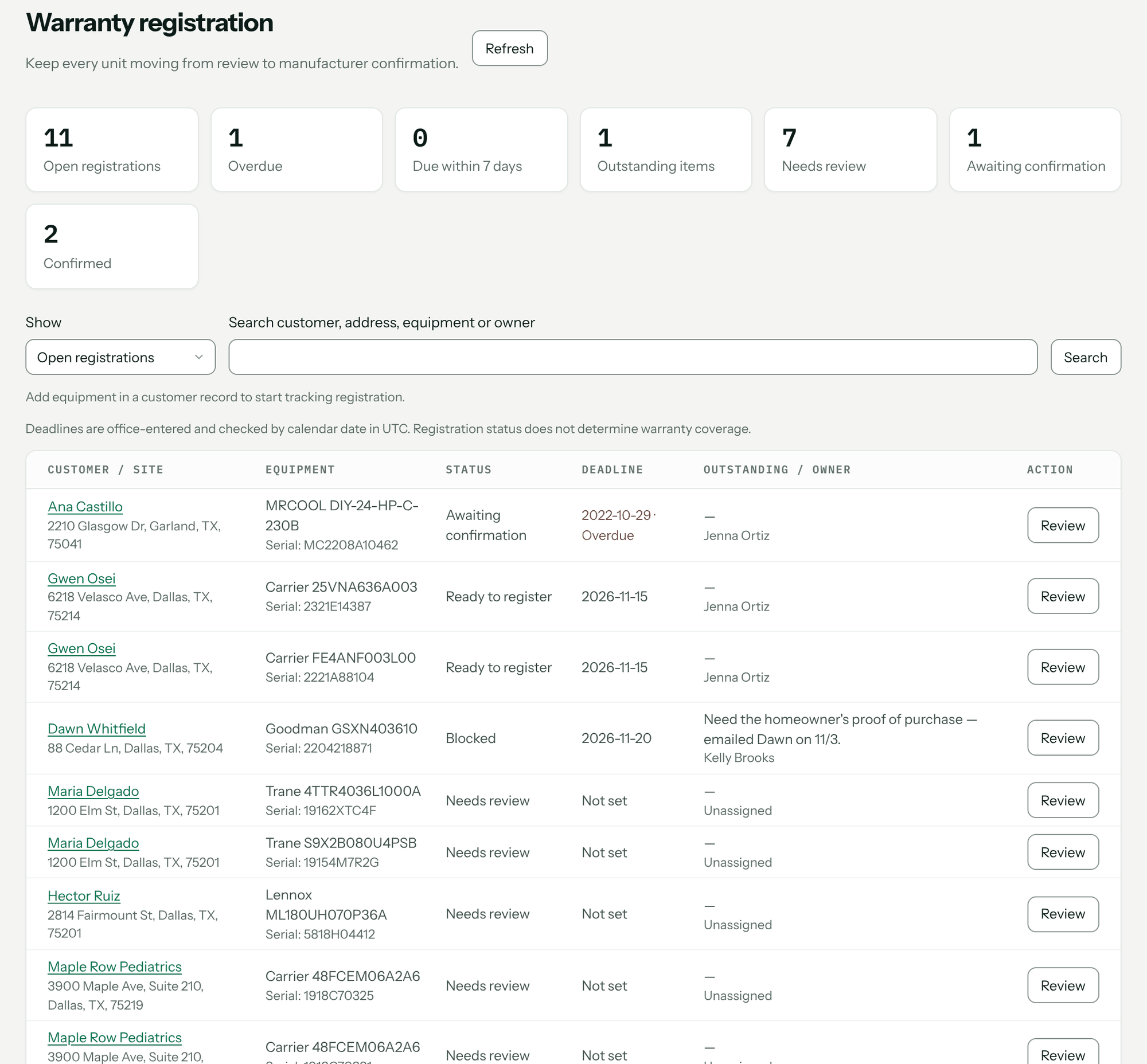
2. Register a unit
- Click Review on the unit. If details are missing, follow Edit equipment in customer record and fill them in first.
- Under Registration helper, click Copy registration packet. It holds the customer, company, installation address, email, phone, equipment type, brand, model, serial and install date. View registration packet shows it on screen.
- Click Open Trane registration (or Carrier, Daikin, MRCOOL). For other brands the drawer says No verified registration link for this brand. Use the manufacturer's official portal. No customer data is put in the link.
- Register on the manufacturer's site.
- Back in Pricebookr, set Registration status, fill in the dates and confirmation, and click Save registration.
Copying the packet or opening the manufacturer's site doesn't change the status or send anything. The status changes only when you save it.
Statuses and what each needs
| Status | Means | Needs before it will save |
|---|---|---|
| Needs review | Nobody has decided yet. Every new unit starts here. | Nothing. |
| Ready to register | Should be registered; not done yet. | Brand, model, serial and install date saved on the equipment. |
| Blocked | Something is stopping it. | A description under Outstanding items. |
| Awaiting confirmation | Submitted to the manufacturer. | Equipment details and a Submitted on date. |
| Confirmed | The manufacturer confirmed it. Leaves the open list. | Submitted and Confirmed on dates, a Confirmation number or Confirmation document link (HTTPS), and no outstanding items. |
| Not required | This unit doesn't need registering. Leaves the open list. | The reason under Notes / reason registration is not required. |
Office owner names who's responsible. Registration deadline is a date you enter from the manufacturer's terms; Pricebookr never works one out from the brand, serial or install date. Deadlines are compared by calendar date in UTC.
What it doesn't do
- It doesn't submit registrations to manufacturers or log in to dealer portals.
- Registration status doesn't decide warranty coverage. Parts and labor warranty dates stay on the equipment and are shown separately in the drawer.
- It doesn't send deadline reminders or store certificate files; link the confirmation document instead.
Troubleshooting
| You see | Why | Fix |
|---|---|---|
| Save the equipment brand, model, serial and installation date before marking it ready or submitted. | The equipment record is incomplete. | Use Edit equipment in customer record, then reopen the unit. |
| Enter the submission date. | Awaiting confirmation or Confirmed with no submission date. | Fill in Submitted on. |
| Confirmation needs a date and confirmation number or document link. | Confirmed without proof. | Enter Confirmed on and the number or link. |
| Resolve outstanding items before confirming registration. | Outstanding items still has text. | Clear it once they're done. |
| Describe the outstanding item blocking registration. | Blocked with no description. | Say what's missing under Outstanding items. |
| Record why registration is not required. | Not required with no reason. | Fill in the notes. |
| Use an HTTPS confirmation document link. | The link isn't https://. | Paste the secure link from the manufacturer. |
| Submission and confirmation dates cannot be in the future. | A date is after today. | Enter the real date. |
| This equipment or registration changed. Close and reopen it before saving. | Someone else saved it, or the equipment was edited, while you had it open. | Close the drawer, reopen it and re-enter your change. |
| Warranty registration is an office task. | You're signed in as a field tech. | An Admin or Sales user handles registration. |
Questions: [email protected].