Techs start their shift on the phone's Timesheet tab (or Clock in at the top of any CRM screen); an admin sets the clock-in rules, approves each person's week under CRM → Time, and exports the CSV for payroll. Time tracking is on the Pro plan. It records hours; it doesn't run payroll or pay anyone.
1. Set the rules (admin)
Go to CRM → Time → Settings.
| Setting | Choices | Default |
|---|---|---|
| Where can people clock in? | Anywhere; At the shop or a job (within range of the shop address or a job they have today); At the job only (within range of a job they have today) | Anywhere |
| Range | Clock-in range in feet, 100 to 5,280. Ending a break is checked the same way. Clocking out never is. | 500 ft |
| Workweek starts | Sunday through Saturday | Sunday |
| Overtime after | Hours a week | 40 |
| Round punches to the nearest 15 minutes | 7 minutes or less rounds down, 8 or more up. The exact punch is always kept. | On |
| Clock people out automatically after the workday ends at | A time of day | Off (6:00 PM when ticked) |
| Ask “still working?” after | Hours on one shift; 0 turns it off | 8 |
| Flag a shift left open after | Hours | 14 |
Click Save. For At the shop or a job, enter the address under Shop address and click Save shop address — it's your company business address. Under Per person you can give one person a different rule; salespeople default to Anywhere.
2. Clock in and out (everyone)
- Phone: Timesheet → Track time: Start shift, Start break, End break, End shift.
- Web: the bar at the top of every CRM screen: Clock in, Start break, End break, Clock out, and This week so far.
Each punch records your location when the device gives one. Under a location rule, starting a shift and ending a break are checked against the range; clocking out never is, so you can always go home. A desktop's location is usually too rough to pass a location check — clock in from the phone.
You'll know it worked when the phone says Shift running (or the web bar says On the clock) with the start time.
Breaks, overtime and forgotten clock-outs
- Breaks under 20 minutes are paid; 20 minutes or more are unpaid and deducted. The real length decides, not the rounded one.
- Overtime is weekly: hours past the weekly limit. A long day isn't overtime by itself.
- Still working? After the set hours on one shift, the app asks Still working, End shift now or I stopped earlier…. The phone also shows a notification, if you allowed them. It's a heads-up and a record; hours worked are paid either way.
- Forgotten clock-outs: with a workday end set, a shift still open an hour after it is closed at the later of the workday end and the last thing the person did. Next time they open the app they're asked Did you forget to clock out? — Yes, that's right or Fix the time. Their week can't be approved until they answer.
3. Review and approve the week (admin)
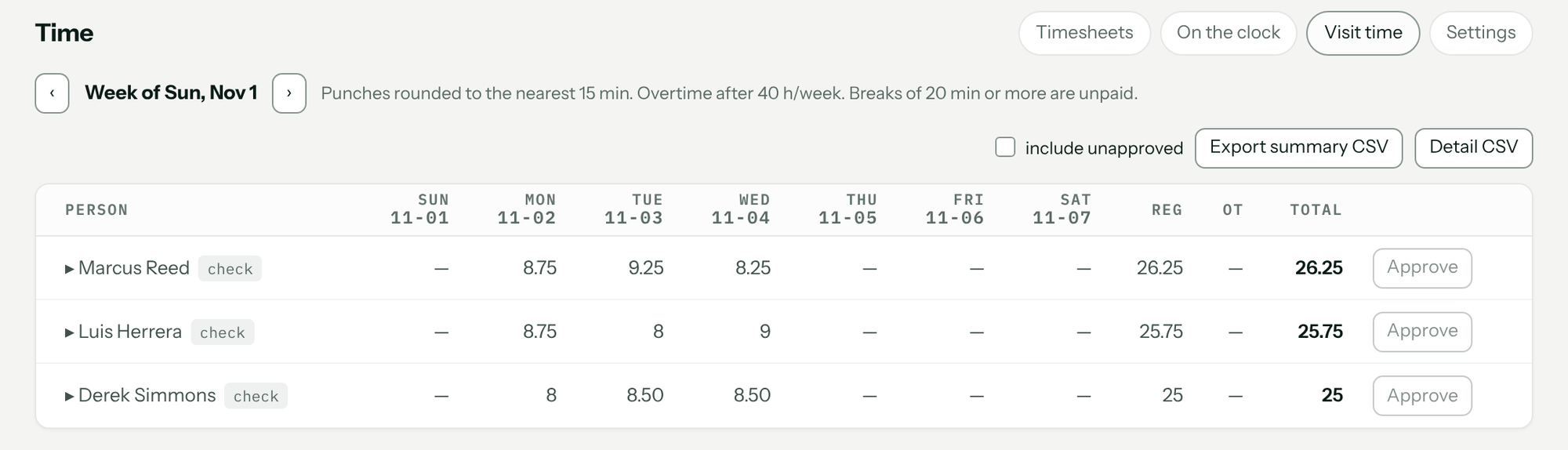
CRM → Time has four tabs: Timesheets, On the clock (who's working right now), Visit time and Settings. Techs and salespeople see their own week under CRM → My time or the phone's Time log.
- On Timesheets, pick the week. Each row shows hours per day, Reg, OT and Total; check marks someone with a flagged shift.
- Click a name to see each shift, its breaks and jobs. Correct a punch, add a missed shift or remove a break there; every change asks for a Reason (required) and is kept with the shift.
- Click Approve once the week is over. An approved week is locked; undo un-approves it, with a reason.
4. Export for payroll
Click Export summary CSV (one row per person: regular, overtime and total hours) or Detail CSV (one row per shift: clock in, clock out, break minutes, unpaid break minutes, paid hours, jobs, flags). Only approved people are included unless you tick include unapproved. Enter the totals in your payroll service.
What it doesn't do
- It doesn't run payroll, pay anyone, or calculate taxes or deductions.
- It doesn't do daily overtime; the overtime rule is weekly.
- On Starter, the payroll clock isn't available. The job timer on each visit still works on every plan.
Troubleshooting
| You see | Why | Fix |
|---|---|---|
| You're 0.8 mi from 214 4th St. Clock-in opens within 500 ft. | You're outside the clock-in range (distance and place vary). | Clock in when you arrive, or ask an admin to clock you in. |
| Clocking in needs your location. Turn on location for this app, then try again. | Location permission is off. | More → Phone permissions and allow location. |
| Your location is only accurate to about … Turn on precise location or step outside, then try again. | The phone's fix is too rough. | Turn on precise location, step outside, and retry. |
| Your phone is reporting a simulated location. Turn off mock location to clock in. | A mock-location app is on. | Turn it off. |
| You don't have a job scheduled today to clock in at. Ask the office to add you to one, or to clock you in. | The rule is At the job only and you have no job today. | The office assigns you a visit, or adds your shift. |
| There's no shop address or job for you today to clock in at. Ask the office to clock you in. | No shop address saved and no job today. | An admin saves the Shop address. |
| You're already on the clock. | A shift is already open. | Refresh; end that shift first if it's wrong. |
| This week isn't over yet. Approve it once it ends. | The week is still in progress. | Approve after the last day of the workweek. |
| They have a shift that's still open. Close it first. | Someone is still clocked in for that week. | Correct or close the shift, then approve. |
| The week of … is approved. Un-approve it to change this time. | The week is locked. | undo the approval, correct, approve again. |
| Time tracking is part of the Pro plan. | Your shop is on Starter. | See Billing and trials to change plans. |
Questions: [email protected].