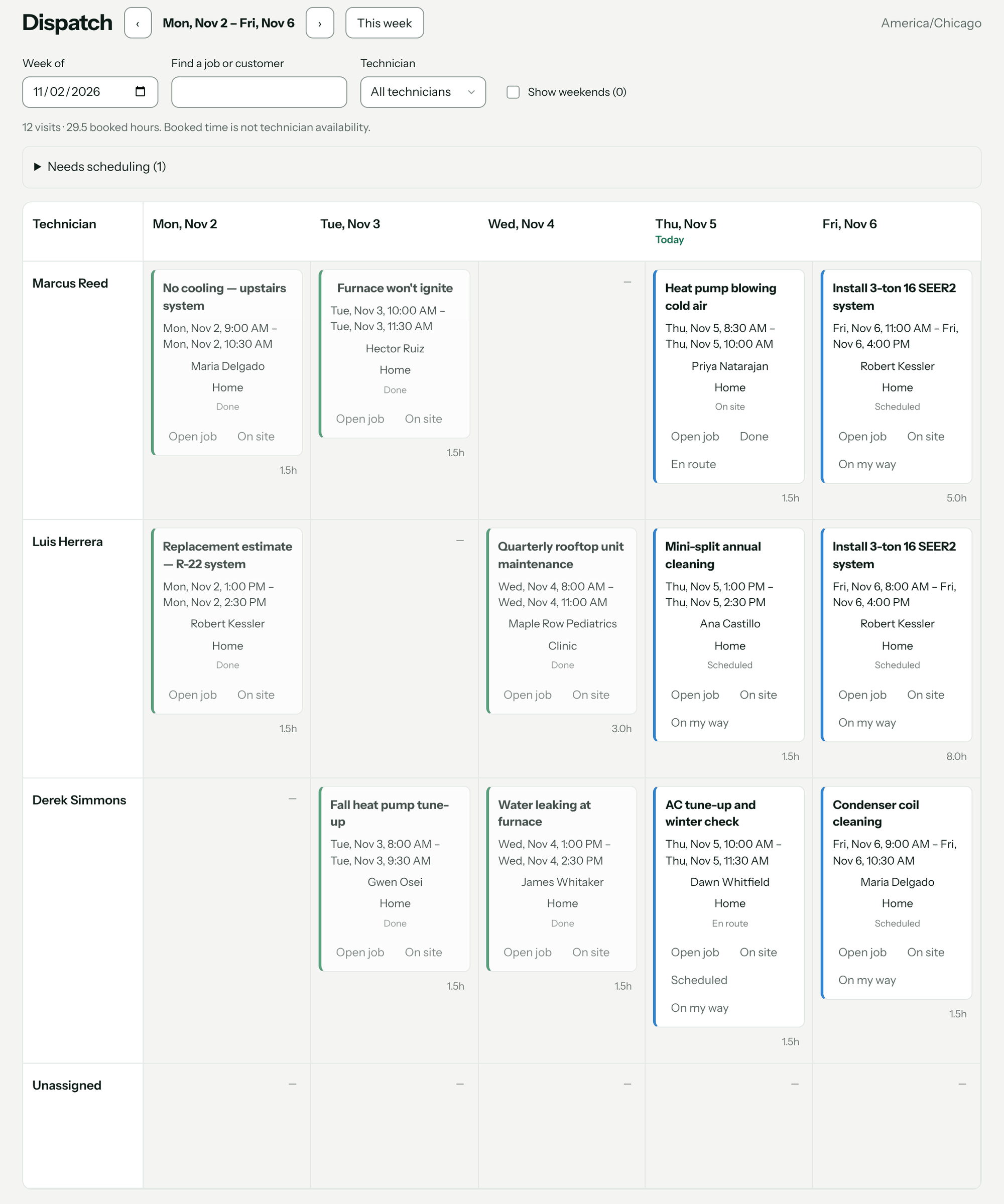
CRM → Dispatch shows the week with one row per tech. Open Needs scheduling, pick a job, then click Schedule here in a tech's day to book it; click any visit card to move it. Admin and Sales users run the board and see the whole team on it. A Field user sees My schedule instead — only their own visits.
Reading the board
- ‹ and › step a week back or forward; This week comes back to today; Week of jumps to any date. Times are in your shop's timezone, shown top right.
- Find a job or customer and Technician filter the board; Clear filters resets them. Show weekends adds Saturday and Sunday, with a count of weekend visits beside it.
- Each card shows the job title, time window, customer, address and visit status — Scheduled, En route, On site or Done — and Booked online for an estimate a homeowner booked. Each cell shows its booked hours.
- Each tech is named by their display name, or their email if they have none. Every Field user always has a row, even an empty one — an empty row means that tech is free. Admins and Sales users get a row only in a week where they hold a visit.
- Visits with no tech are in the Unassigned row.
- Booked hours aren't availability, and recurring visits appear only once they're generated — an empty future week doesn't mean the tech is free.
1. Book a job that needs scheduling
- Open Needs scheduling. It lists jobs that are New, Scheduled or In progress with no open visit. A job with a planned date shows "Planned:" and "Time not confirmed".
- Click the job. The board shows Schedule here in every cell.
- Click Schedule here in the tech's row on the day you want. The Schedule visit window opens with that tech and day filled in.
- Set the Start time and Duration (minutes) and click Save visit. Nothing is booked until you save.
You'll know it worked when the card appears in that cell and the message says Visit saved., with View saved visit to jump to it.
Putting a visit in a tech's row gives them the job if nobody holds it yet, and moves a New job to Scheduled.
2. Move, reassign or cancel a visit
Click the card. Reschedule visit opens; change the date, time, length or Visit technician and click Save visit. Cancel visit cancels it after you confirm. Open job on the card opens the whole job instead.
Who is told:
| Visit | What the customer gets when you change the time |
|---|---|
| Ordinary visit | Nothing automatic. Call or text them yourself. |
| Recurring maintenance visit | A reschedule email and, if they've agreed to texts, a text. Changing only the tech sends nothing. |
| Booked online | An email from the booking page. The length stays fixed and a tech is required. See Let customers book their own estimate visit. |
3. Run the day: status and On my way
The buttons on each card move the visit along: On site from Scheduled or En route, Done from On site. On my way marks the visit En route and texts the customer that the tech is on the way; press it again on an En route card to text again. If the text can't go — no consent, a STOP, texting not set up — the visit is still marked en route and the message says why the text wasn't sent.
If On my way texts are switched off under CRM → Automations, the button reads En route and sends nothing. Texting setup: Text customers from your own number.
Visit status drives the job: On site starts it (In progress), and the last visit marked Done completes it. Techs usually do this from the app — see Use the Pricebookr app.
4. Mark a tech sick or unavailable
- At the bottom of the board, open Technician availability and customer notifications and set the Availability day.
- Click Tech unavailable. Choose the Tech, the Reason (Sick or Unavailable), and From / Until. 00:00–23:59 blocks the whole day. The reason stays private to the office.
- Click Mark unavailable.
New visits can't be booked for that tech in that window, and the time is taken off your online booking page. Visits they already have stay put and are listed under Resolve affected visits:
- Tick visits, choose a tech in Reassign selected visits to, and click the reassign button. Each visit is checked; any that conflict stay on the list. Changing only the tech keeps the customer's time.
- Change day / tech opens one visit to move it.
- Recurring jobs with a day but no time yet show under Recurring work awaiting an appointment time, with Visit day, Tech and Save visit.
When the tech is back, click Clear unavailability. That removes the block; it doesn't undo the moves you made.
5. Recurring visit reminders
For recurring maintenance visits, the customer is emailed — and texted, if they've agreed to texts — the day before, between 9am and 7pm in your shop's timezone. It's on by default; switch it off under CRM → Automations. Reschedule notices for recurring visits can't be switched off. Texts are held overnight and go out after 9am; emails go straight away.
Click Customer notifications (beside Tech unavailable) to see recent reminders and reschedule notices by channel and whether each was sent or failed. Sent means the email or text provider accepted it. A failed one says what to follow up — for example "Customer has no textable phone number. Contact them to confirm the visit." Failed notices aren't retried; check the customer's texts before sending anything again.
What it doesn't do
- No drag-and-drop on the week board: book with Schedule here and move with Reschedule visit.
- No automatic reminders for one-off (non-recurring) visits.
- Field users can't book, move or reassign visits, or mark anyone unavailable.
Troubleshooting
| You see | Why | Fix |
|---|---|---|
| This tech is unavailable during that visit. Choose another tech or time. | The tech is marked unavailable then. | Pick another tech or time, or clear the unavailability. |
| This tech already has a visit during that time. Choose another tech or time. | Double booking. | Change the time or tech. |
| This time is invalid or does not exist in the shop timezone. Choose another time. | The time isn't valid, or falls in the hour skipped when clocks spring forward. | Pick another time. |
| This time occurs twice. Choose an occurrence. | The time falls in the repeated hour when clocks fall back. | Choose Earlier or Later. |
| Choose a valid time and technician. | The time is incomplete, or a booked-online estimate has no tech. | Fill in the time and choose a tech. |
| Marked en route. Text not sent: … | The visit moved, but the text was refused; the reason follows. | Fix what the reason names (consent, STOP, texting setup). |
| cannot move a scheduled visit to done | A visit has to be On site before it can be Done. | Mark it On site first. |
| This shop asks for at least one After photo before a job is finished. Add one on the closeout screen. | A tech marked the last visit Done without an After photo. | The tech adds the photo, then marks it Done. |
| Choose an absence of up to 31 days, ending after it starts. | The Until time is before From. | Fix the times. |
Questions: [email protected].